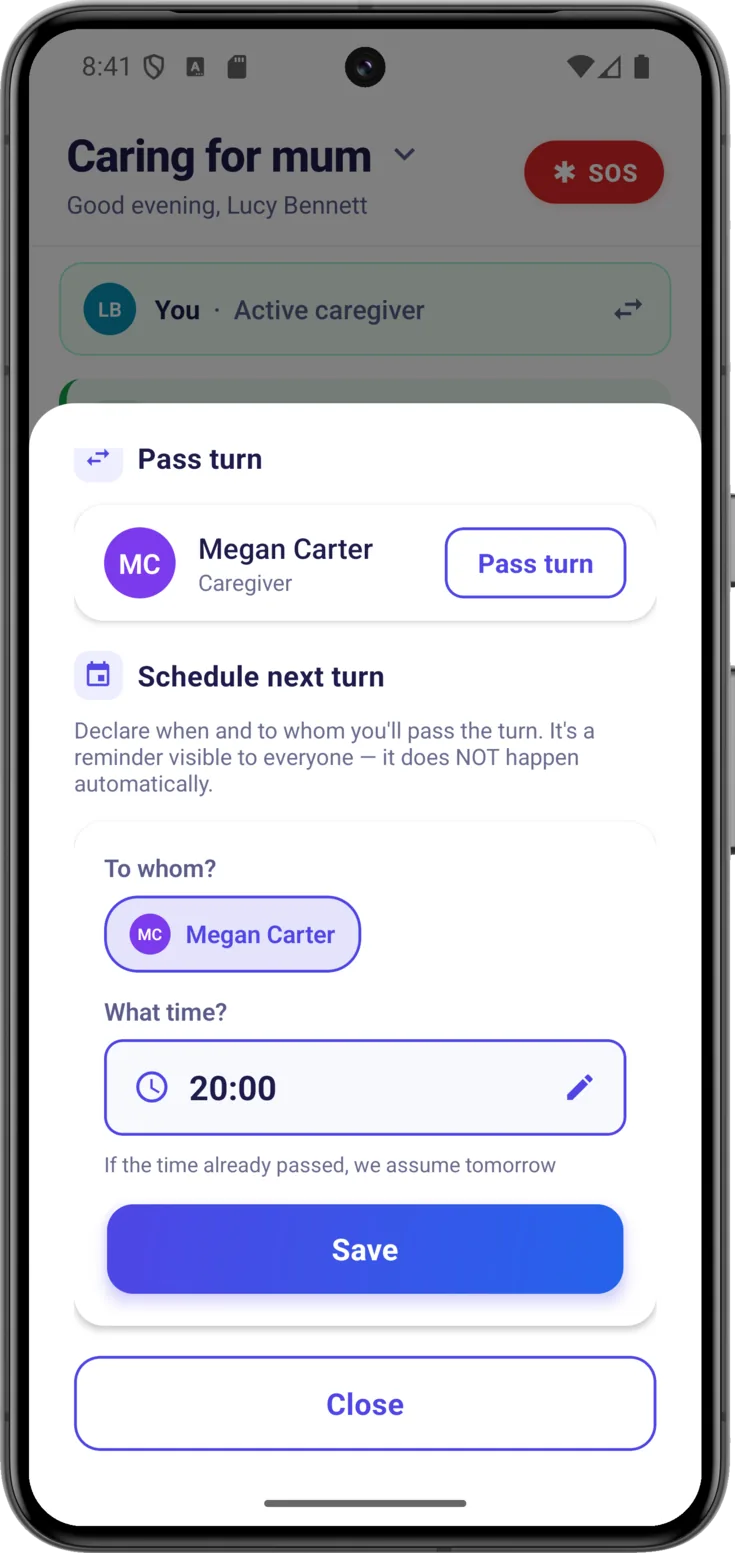
When several people share the care of someone, the everyday question is «who is keeping watch right now?». If that isn’t clear, two people end up doing the same thing, or nobody is paying attention because each one thought the other was on it.
Turns solve this: at any given moment there is one single active caregiver, and that turn is handed over with a single tap. If you care on your own, it will always be yours and you don’t have to do anything about it.
The turn on the Today screen
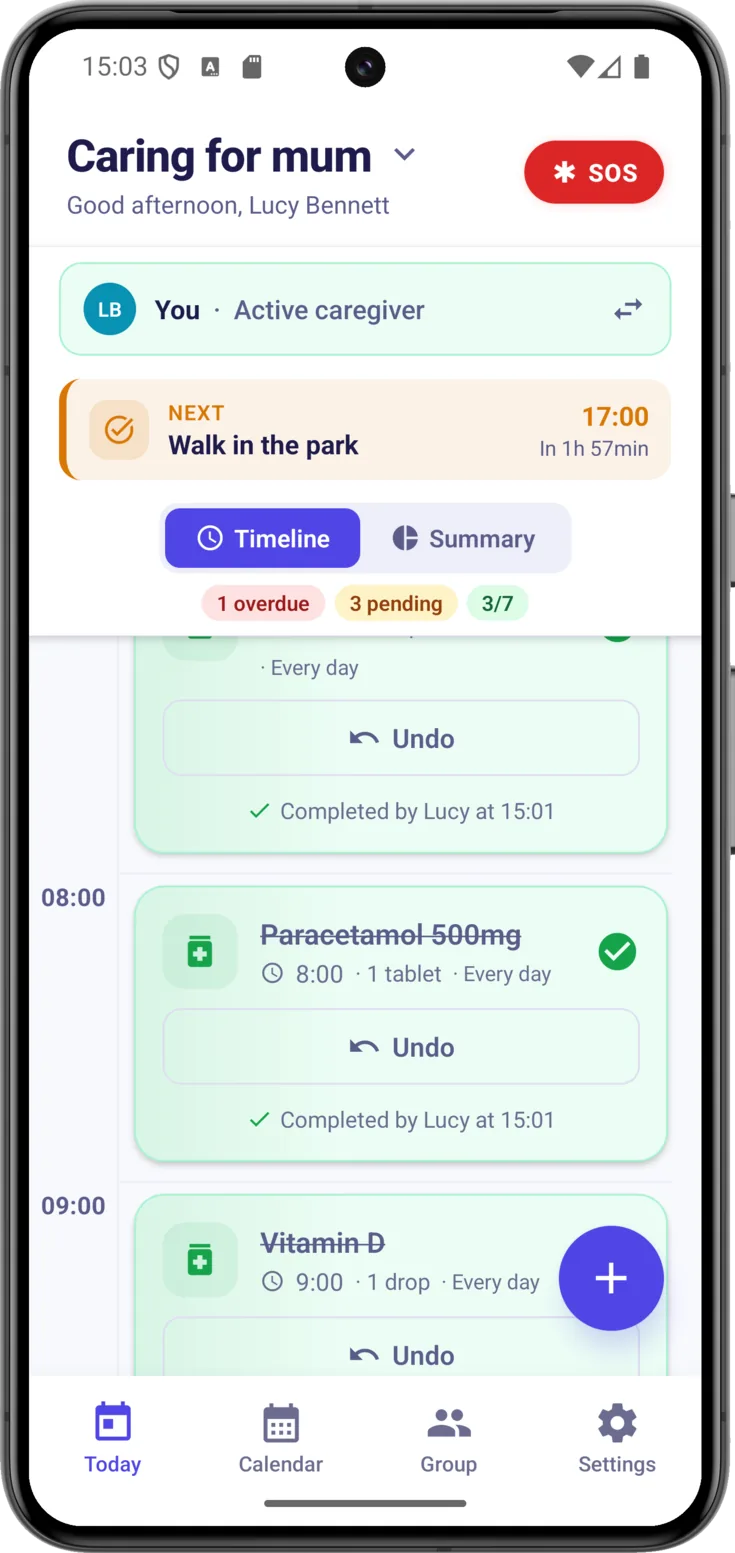
On Today there is a turn banner, the strip at the top that says who is in charge right now.
Look at the banner
It changes colour and message depending on who has it:
- «You · Active caregiver» on green: it’s your time to keep watch.
- The person’s name and photo, when another caregiver is in charge. That way you know who to alert.
- «No turn assigned» on amber, when nobody has it. The amber is a gentle nudge for someone to take over.
To manage it, tap the banner .
Passing or taking the turn
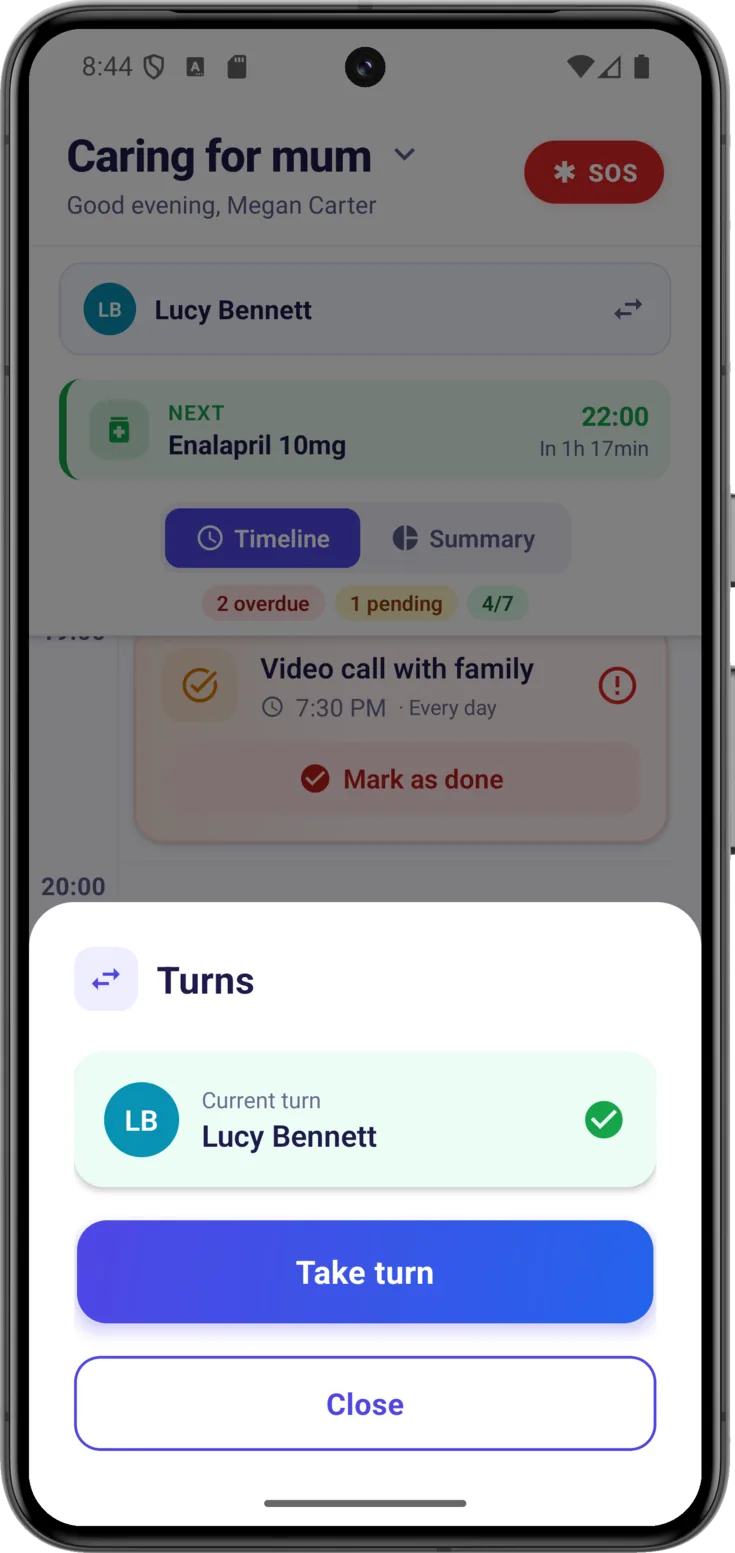
Tapping the turn banner opens «Turns», which shows who has it at this moment and, below, the actions available to you. They don’t all appear: only the ones that make sense in your situation.
Take the turn
If someone else has it and you are the one about to take charge — «I’m home now, I’m taking over from my colleague» — tap «Take turn». From that moment on you are the active caregiver, and the group sees it instantly. If that button doesn’t appear, it means you haven’t been given that permission in your group, and whoever organizes the group can grant it to you from Care groups. With one exception that is worth knowing about: if the group has an announced closure, permissions stay fixed until that closure is cancelled, so that change will have to wait.
Pass it to someone
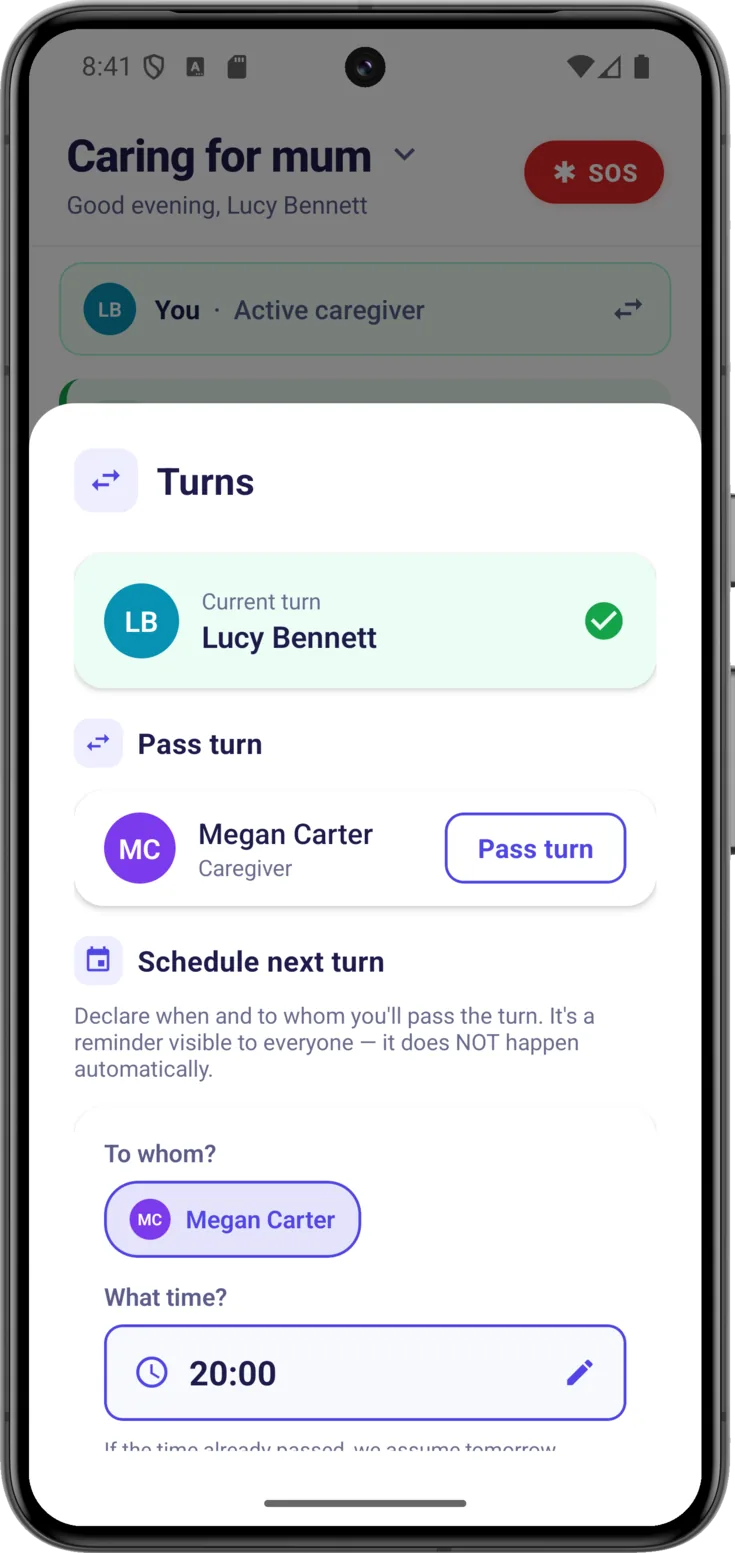
If you are the active caregiver — or you are the organizer — you will see the list of members with the «Pass turn» option next to each name. It’s what you’ll do when your stretch of care is over: «I’m off, Sarah is up next». There’s no need to give notice anywhere else: the app announces it.
In a group with an announced closure this works differently: the turn can only be passed by whoever has it at that moment. Anyone in the group can still take it themselves, so the way out, when it needs to move, is for the person about to take charge to take it.
Ticking something off when you don’t have the turn
You don’t need to have the turn in order to tick something off as done. If you were the one who gave the tablet, write it down even if someone else shows up as being in charge.
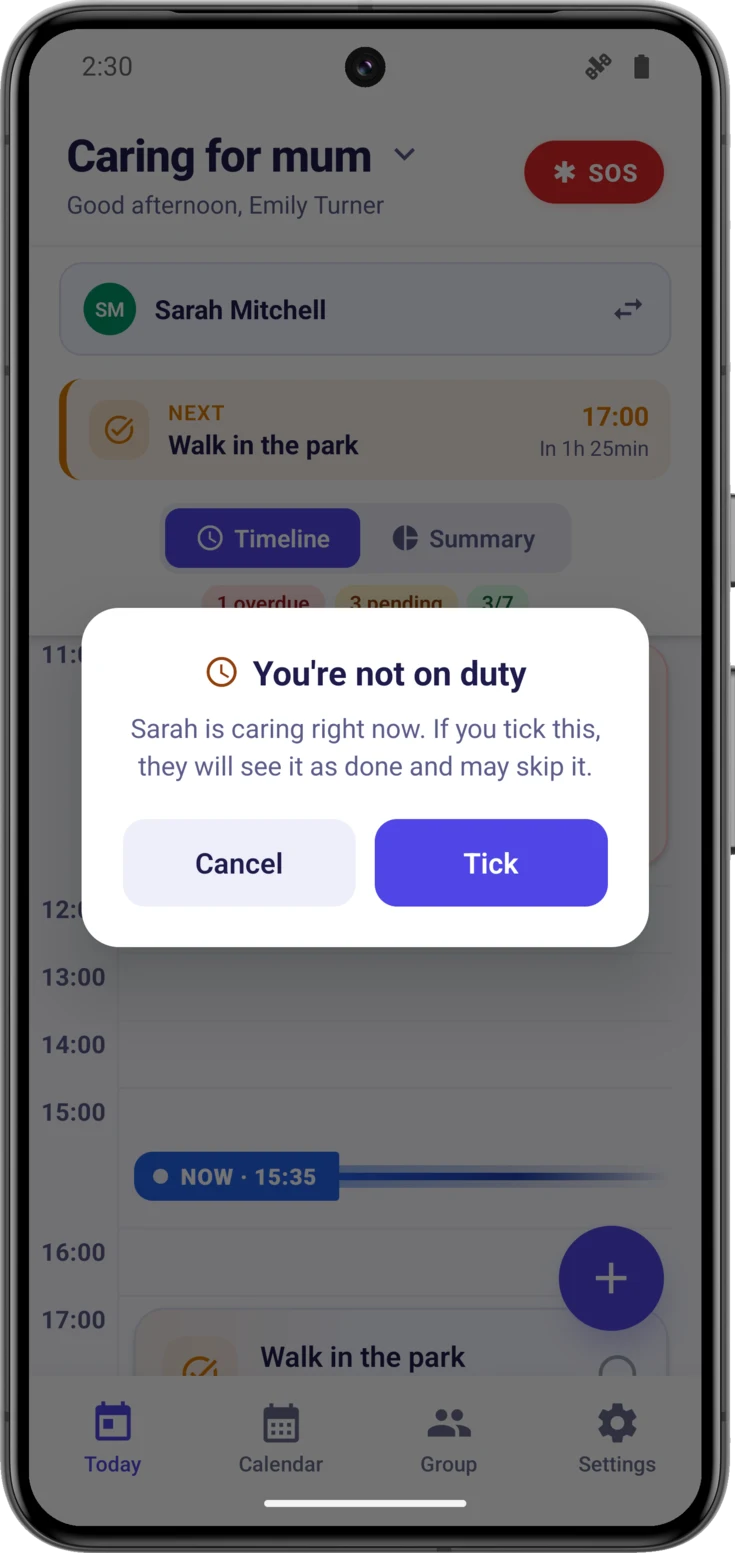
The app warns you beforehand, but it doesn’t stop you: the «You’re not on duty» dialogue appears, reminding you who is in charge right now and what may happen if you tick it. If you really did give it, tap «Tick».
The warning before you tick
The warning exists for one specific reason: someone who isn’t there taps a card by mistake, whoever is actually with the person being cared for sees «Done», and that dose never gets given. A tick made in error turns into a missed dose.
And that is precisely why it doesn’t block you: if it wouldn’t let you tick it, whoever did give the tablet would have no way of putting it on record, the app would go on showing it as pending, the overdue alert would go out to the whole group, and someone might give it a second time. A dose too many is just as dangerous as a dose too few.
The same thing happens when you untick something that you didn’t tick yourself: it warns you that the other person will see it as pending and might repeat it.
The entries that carry a label
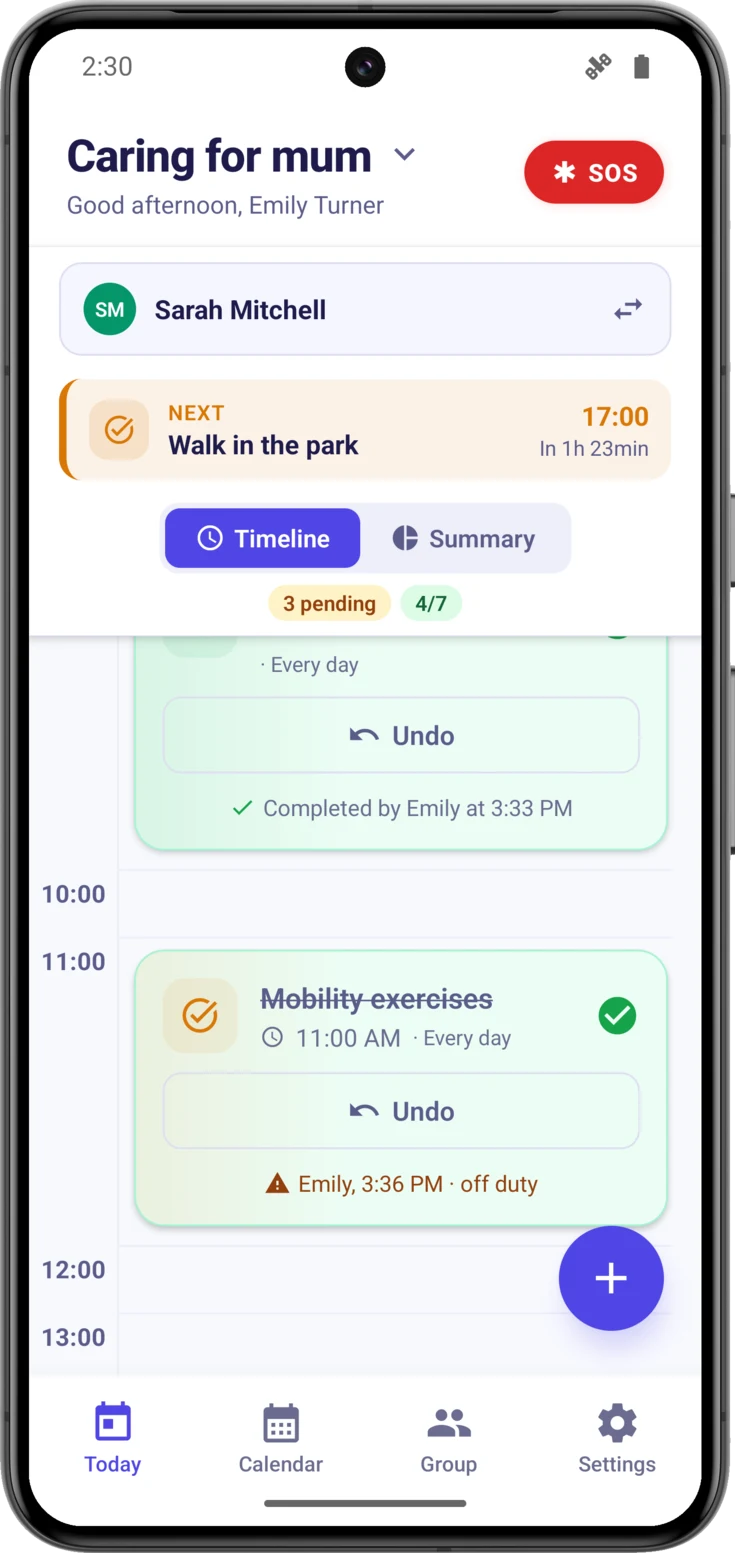
There are two situations in which a tick ends up flagged in amber. It isn’t a telling-off: it’s information for whoever reads it afterwards, because these are the two cases where it is worth checking before taking it at face value.
«off duty» and «marked later»
-
«off duty» — it was ticked by someone who wasn’t in charge at that moment, after accepting the «You’re not on duty» warning.
-
«marked later» — the tick was made on a day after the day it belongs to. Caring is a job full of interruptions: you give Tuesday morning’s tablet, the day runs away with you, and you don’t remember to write it down until Wednesday, or until Friday. This is allowed on purpose, because otherwise the app would say for ever that the dose was never given.
Watch out for the detail that confuses people most: what decides it is not the time at which you write it down, but whether the day it belongs to has already gone by. If you remember on the same day, even late at night, the tick comes out clean and without a label. The label only appears once the day it belongs to is behind you.
Both of them show up in two places: on the card itself, next to who ticked it —«Emily, 9:40 PM · marked later»—, and in the group history, as a little amber pill beside the entry.
Scheduling the next turn (Pro)
Sometimes you already know how the day is going to go: «my brother takes over from me at six this evening». With Pro, the active caregiver can leave it stated in advance, in plain view of the whole group.
Say to whom and when
In «Schedule next turn» choose «To whom?» and «What time?», and tap «Save». If plans change you can «Update» the time or the name, or «Clear» the notice.
Once saved, the planned handover appears in the turn banner itself as «Next: …».