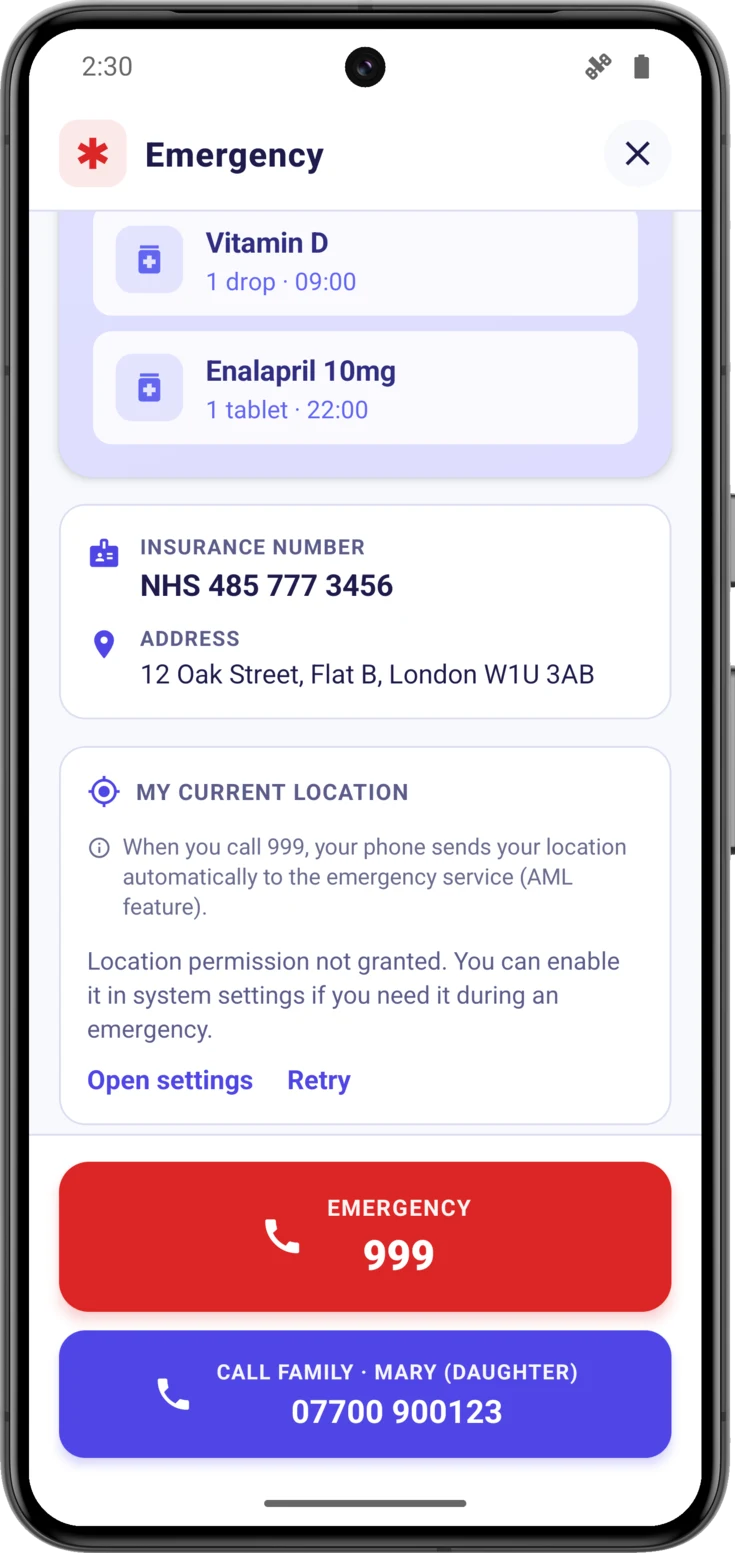
The SOS screen gathers in one single place the medical details of the person you care for and the buttons for calling for help. Open it once now, calmly, so that you know where it is on the day you need it.
How to open SOS
Tap the SOS button
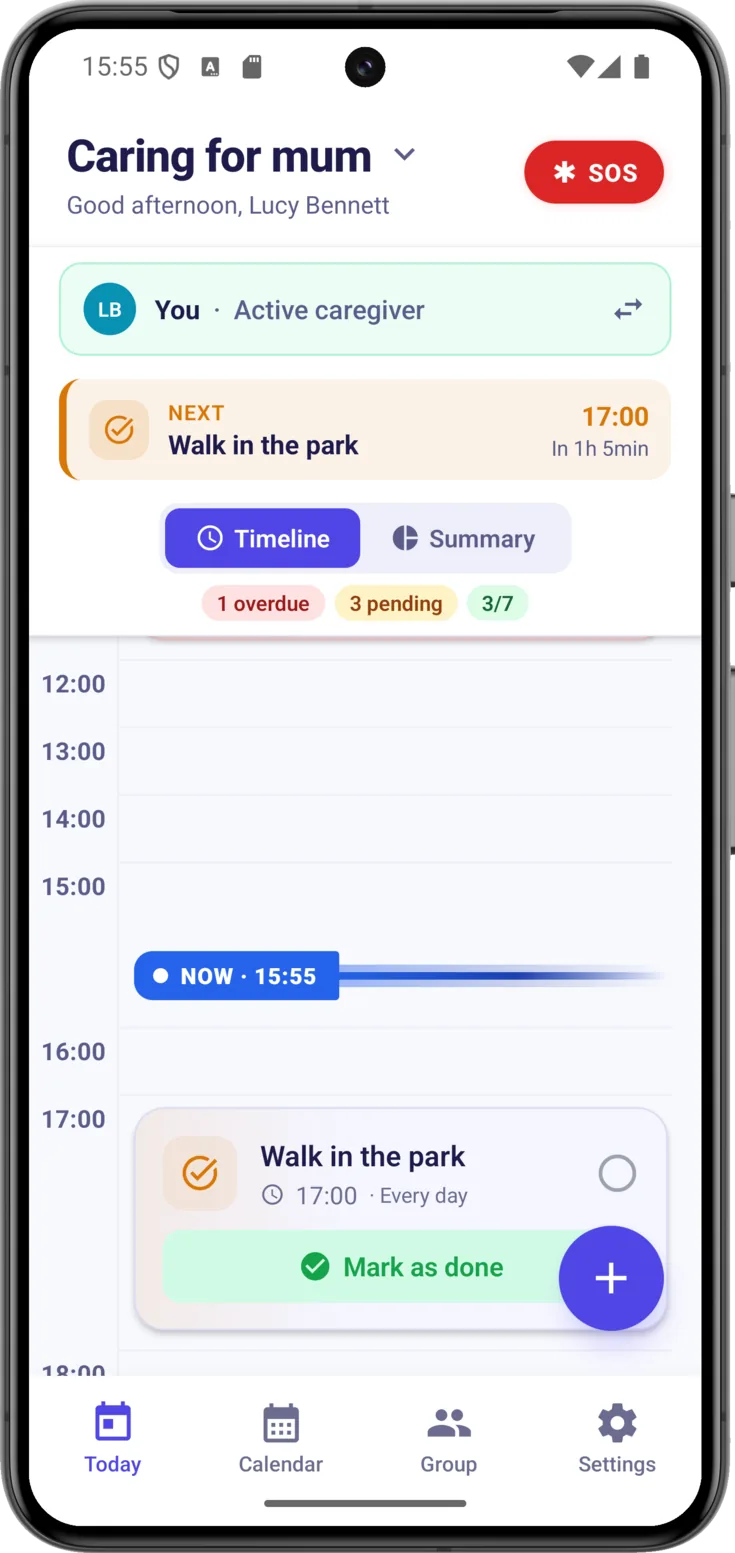
Open Today — the app’s first screen — and tap the red SOS button at the top. The «Emergency» screen opens.
The medical information at a glance
Read the care recipient's profile
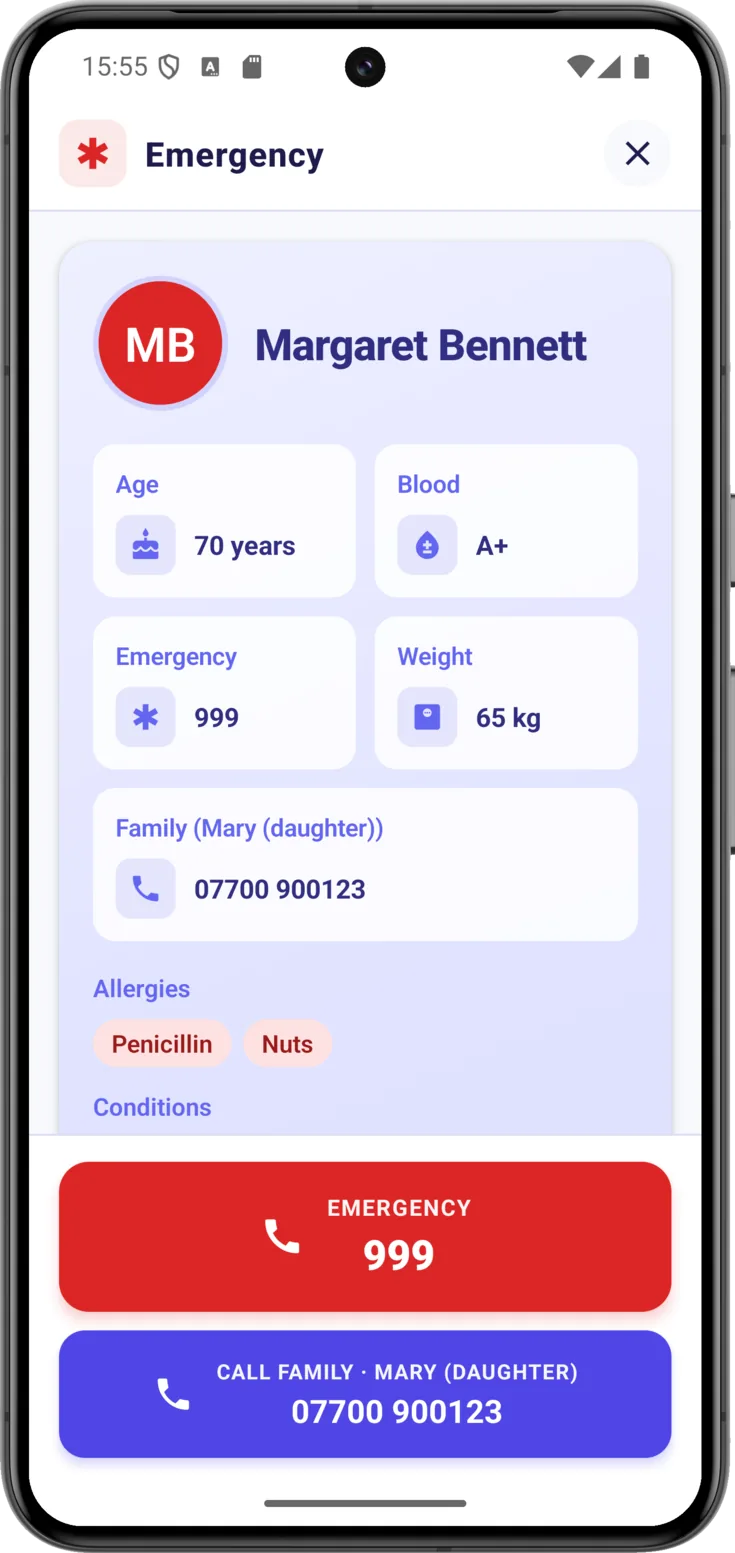
Right at the top is what an emergency service usually asks about. You can read it out loud, or hold the phone out to the paramedic:
- Name and age.
- Blood type, weight, emergency phone number and family contact.
- Allergies (in red) and conditions (in orange).
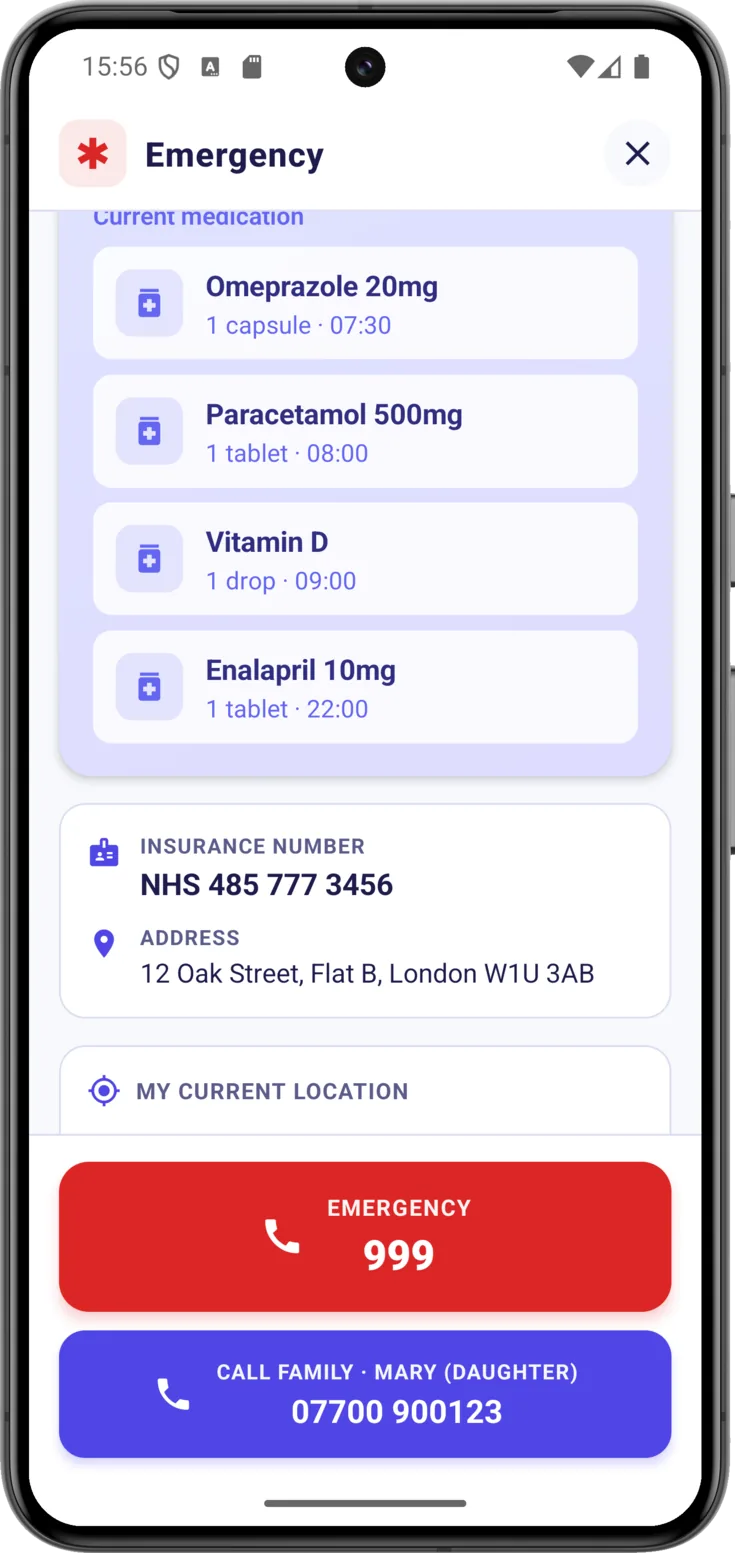
- Current medication.
- Insurance number and address, if you have filled them in.
Calling for help
Call the emergency services
Tap the big red «Emergency» button . It has written on it the number it is going to call: your country’s emergency number, which is 911 in the United States and 112 across Europe.
If you would rather it called somewhere else — their health center, the care home — fill in «Emergency phone» in the care recipient’s profile: that number takes precedence over the country’s one.
Or call the family
Tap «Call family» to dial, with a single tap, the family or trusted contact number you have saved in the profile.
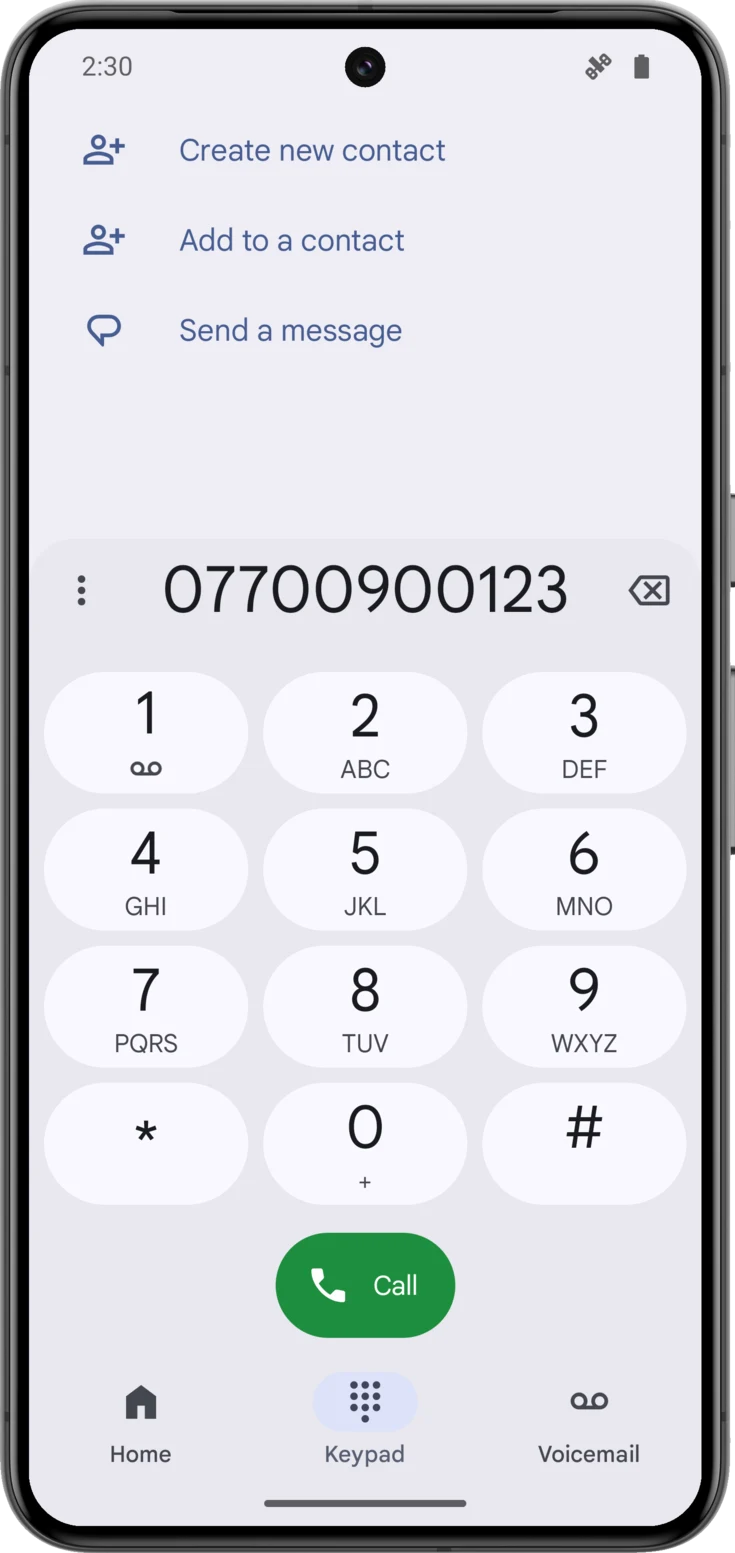
Android
The dialer opens with the number entered: tap the green call button.
iPhone
A confirmation box appears with the number: tap «Call».
Saying where you are
This is useful for guiding an ambulance that cannot find the doorway, or for raising the alarm from the street.
Check and share your location
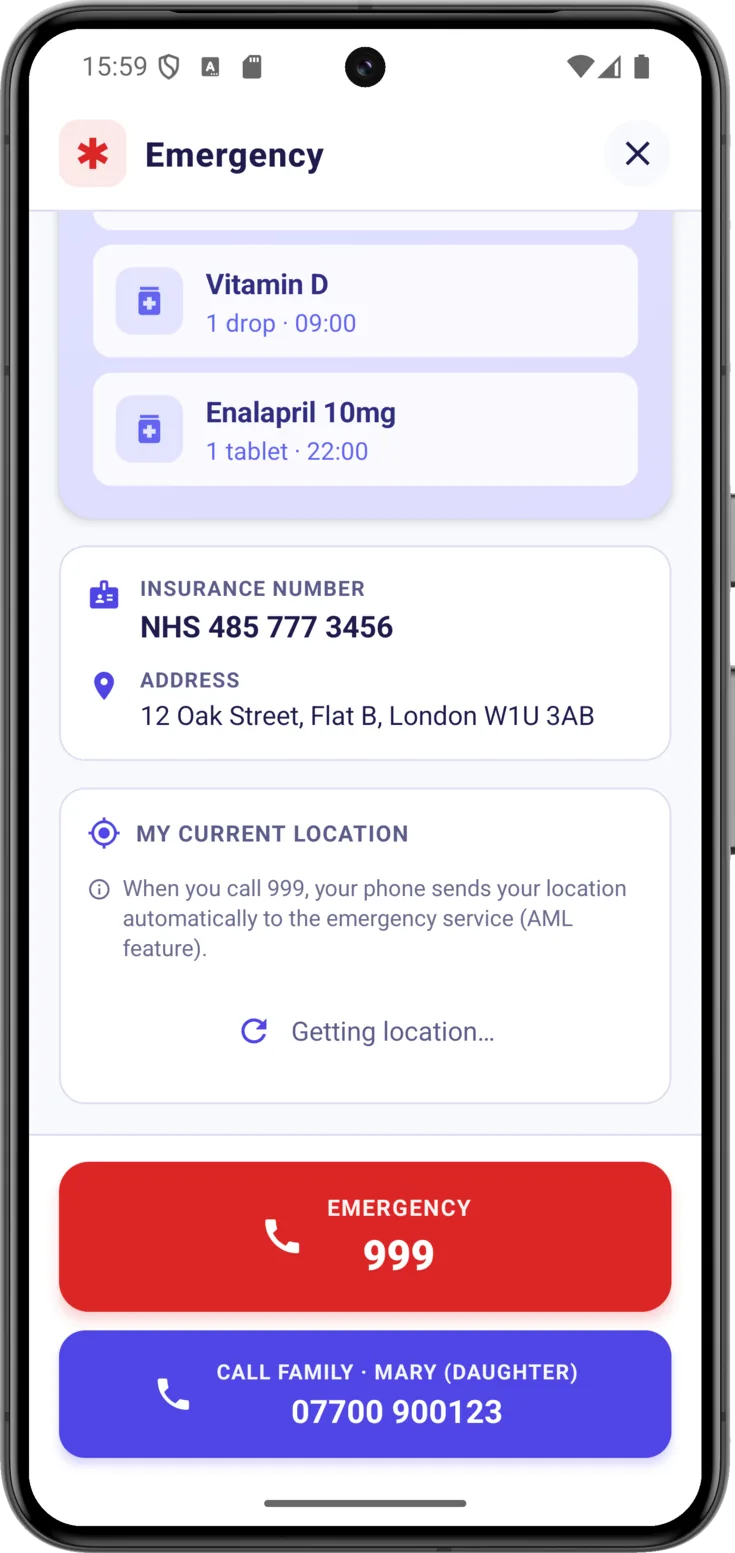
Tap «Show where I am now» . The first time, the phone will ask you for permission, which is the next step; from then on you will see your address and your coordinates on screen, ready to read out loud.
As soon as there is an address, that button gives way to «Share location» , which sends it by WhatsApp, text message or whatever you use, with a link that opens the map at the exact spot. Until you tap that button, nothing is sent to anybody.
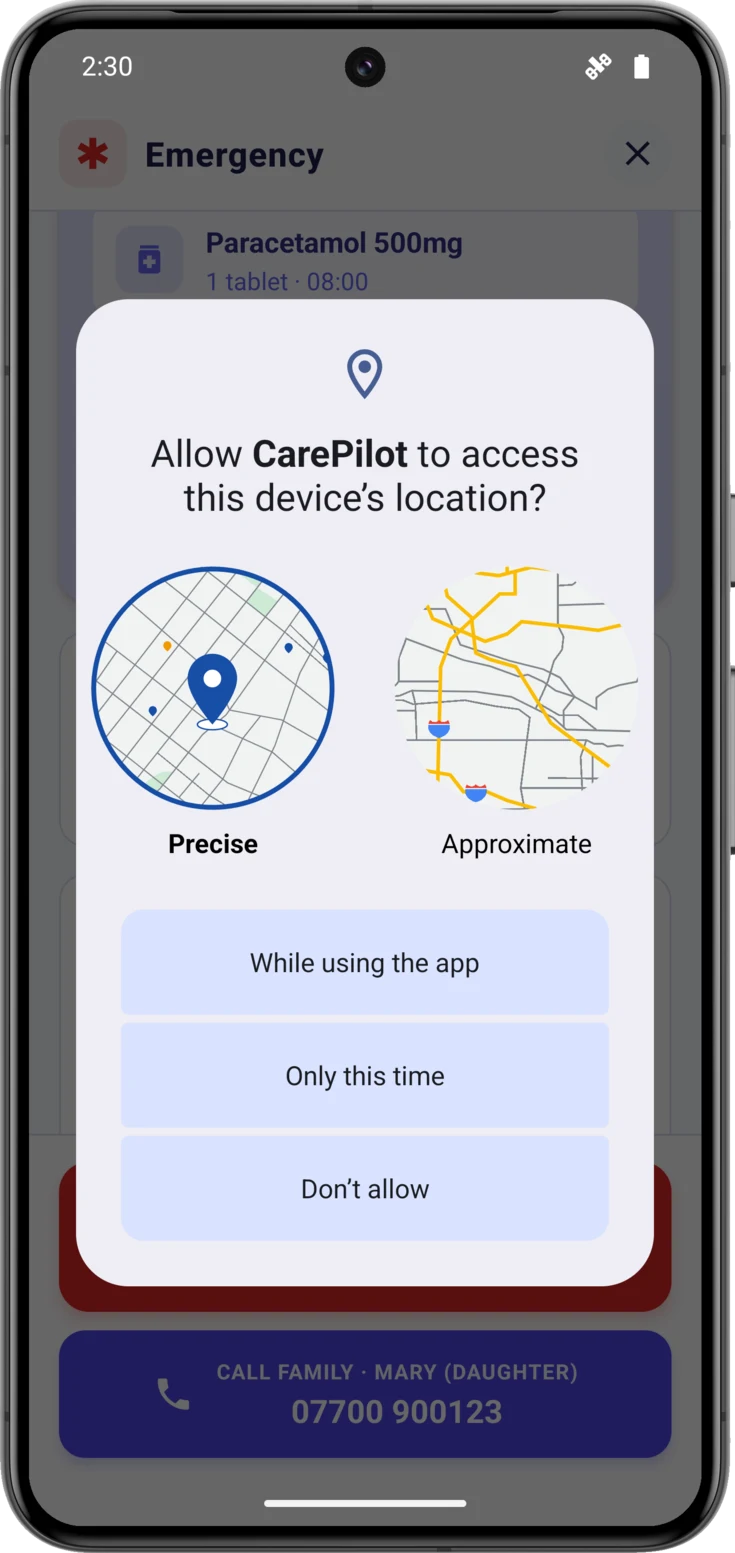
The first time, grant the permission
This notice is shown by the phone, not by CarePilot. Choose «Precise», which is the one that gives the street and the number.
Both «While using the app» and «Only this time» work; with the second one it will ask you again next time.
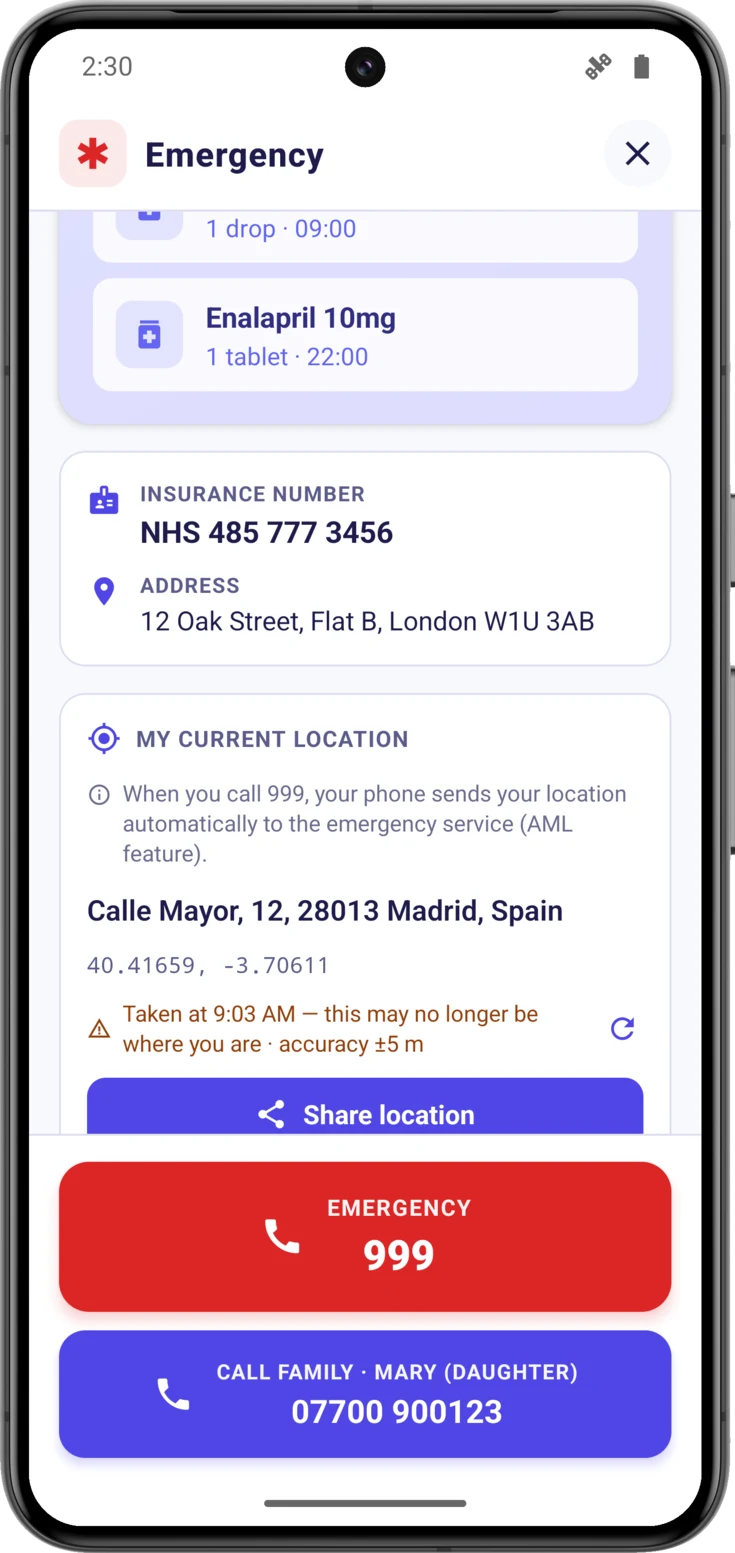
Refresh it if you have moved
Below the address you will see what time it was taken and with what margin of error. After two minutes that line turns amber and warns you: «Taken at 12:52 PM — this may no longer be where you are · accuracy ±5 m».
It is worth looking at that time, because the position may already be an old one: indoors or in a basement the GPS sometimes cannot get a fresh reading, and the app falls back on the last one the phone had stored. That is better than nothing at all, but it helps to know how old it is.
To take it again, tap the circular arrows icon to the right of that line: once there is an address on screen, that is the only way to refresh it.
If the location does not appear
The card tells you what is happening and what to do
If you said no to the permission — or you cannot remember — the card explains it right there and offers you two buttons: «Open settings», which takes you straight to where it is changed, and «Retry».
If the permission has been granted but the GPS is slow, the app waits a few seconds and then falls back on the last position the phone had stored. Only if there is not one either will it say «Couldn’t get your location. Check that GPS is enabled», and then it really is time to check that it is switched on and tap «Retry».