The Calendar is the overall view: it lays out every medication, appointment and task across the month. If Today is the screen for the day at hand, this one is the full panorama — looking ahead so that nothing takes you by surprise, or back to remember what happened.
You get there from the Calendar icon in the bar at the bottom. At the top you have the group’s name with an arrow beside it: the calendar always shows the things belonging to that group, and that is where you move from one group to another.
Month or List
At the top you have the two buttons for switching between them:
- «Month» — the grid, like a wall calendar. It is there for placing yourself in time and seeing which days have something on.
- «List» — the routines that are up and running, grouped by type. A routine is each medication, appointment or task that the group looks after, and how they are created and edited is told in Routines. It answers the question «what medication is being taken right now?».
The Month view
Move through the month and see what is on
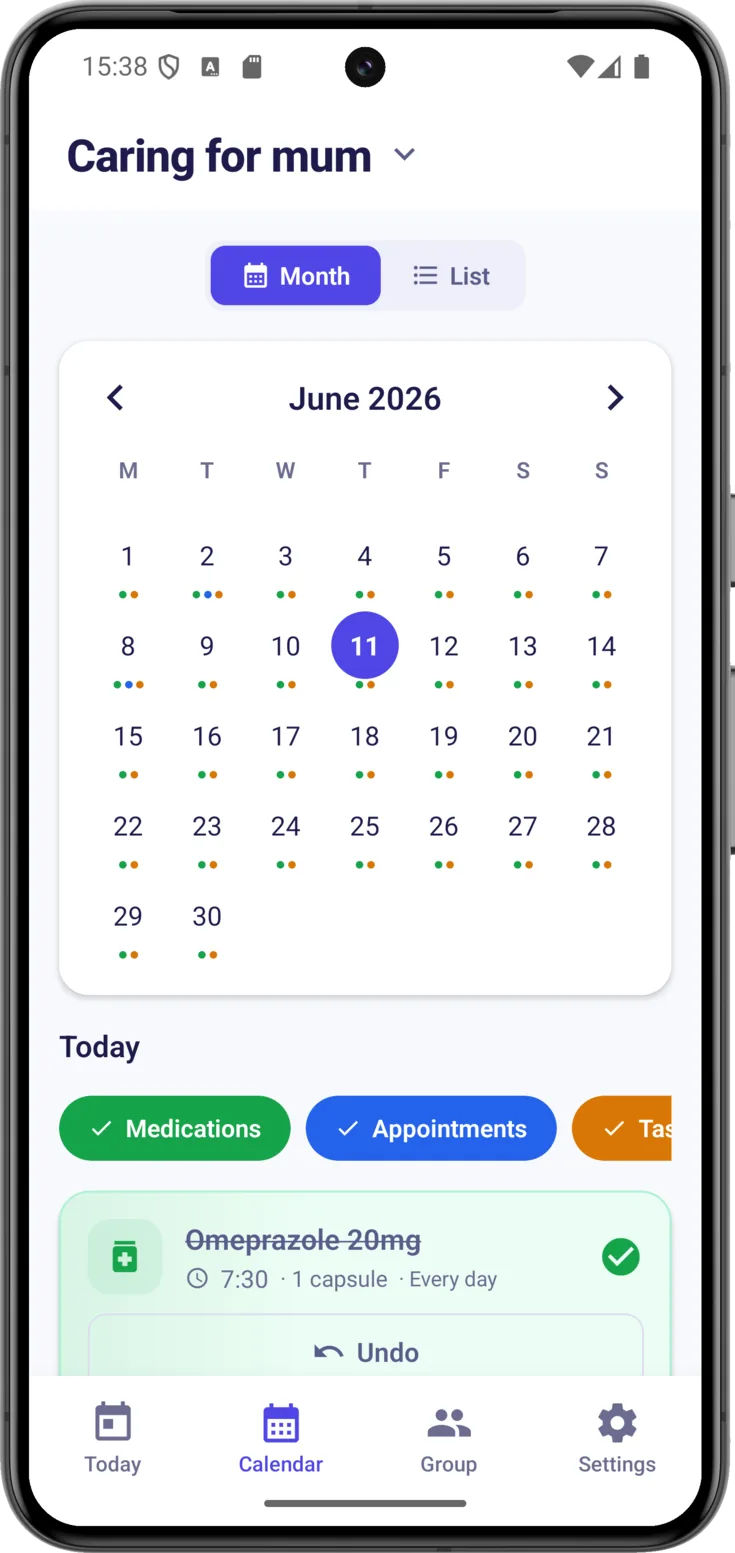
To change month, use the arrows and on either side of the month’s name.
Today’s date carries a filled-in circle, with the number in white, and as long as you do not tap another date that is the only circle you will see. When you tap a different day, that one is marked with a circle that is outline only, so that you do not confuse it with today.
Under each day’s number there are some coloured dots that tell you what kind of thing is on:
Medications — the medication doses
Appointments — doctors, visits…
Tasks — anything else to be done
A day without dots is a day with nothing written down.
The selected day
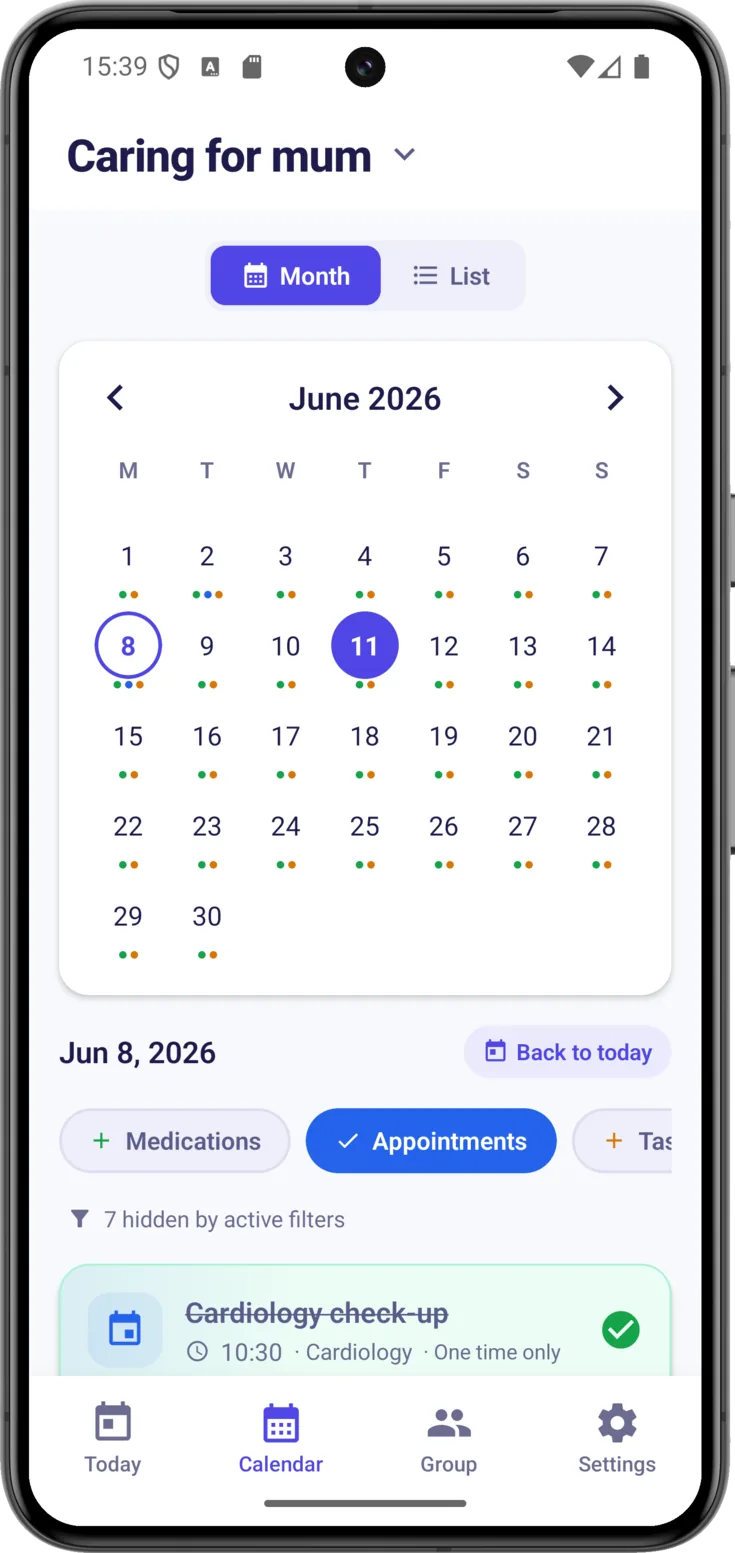
Tap any day and, just below, everything there is appears, one thing after another. If you have been looking at other dates, the «Back to today» button brings you back with a single tap.
Filter by type
If a day has a lot on it, the «Medications», «Appointments» and «Tasks» filters let you show or hide each type. All three come switched on, so it is a matter of switching off whatever you would rather not see.
A filter that is switched off turns white and shows a +. That + is misleading, because it looks as though it is going to add something new, when all it does is bring back into view what you had hidden.
Nothing is deleted, and a notice tells you how many things you have left hidden («8 hidden by active filters»). The filters are only in the Month view.
Open a routine
Each thing on the day is a card, just as in Today, and to mark it as done you use the button on the card itself.
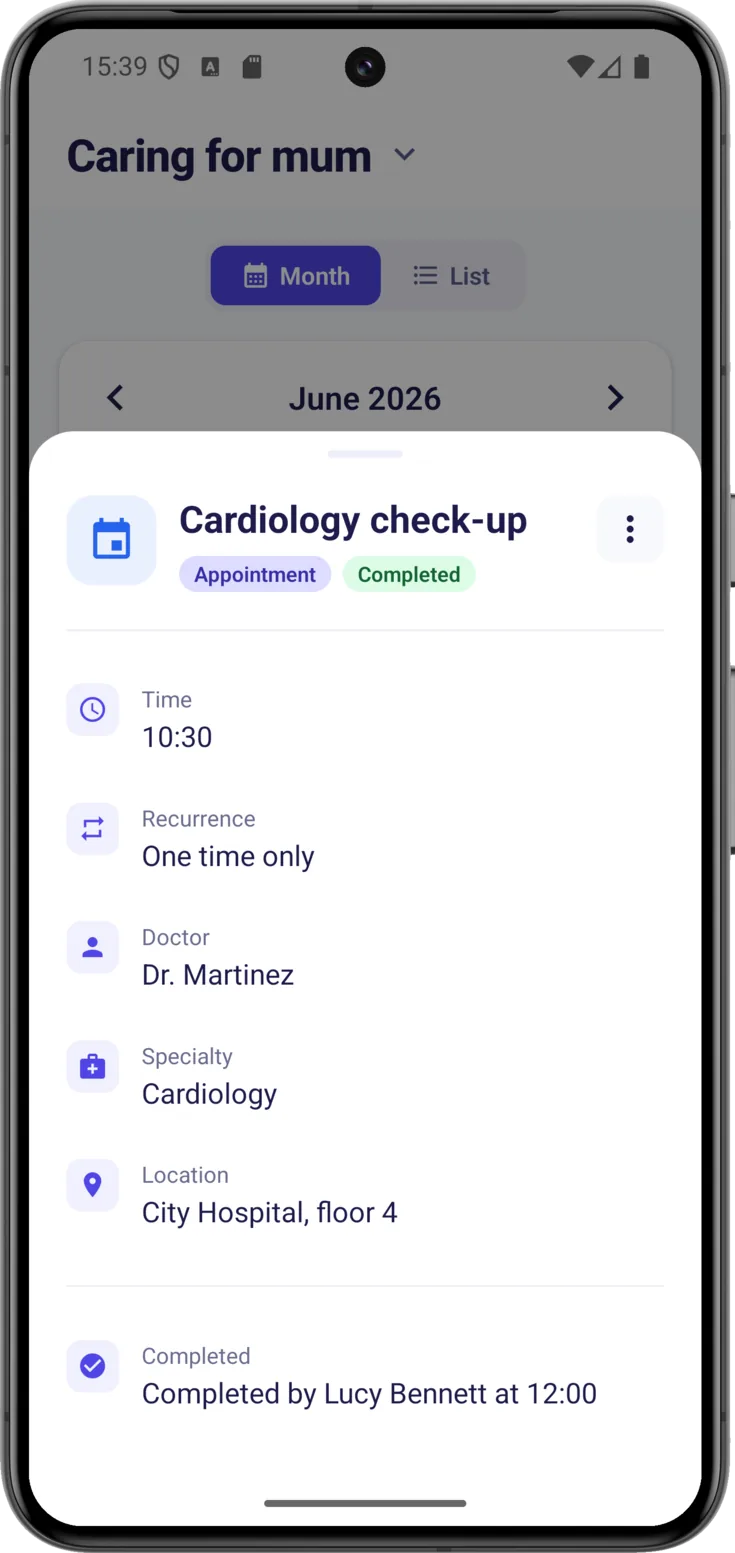
Tapping the body of the card opens its detail, which is there only for looking things up. Each piece of information comes with its own label: the «Time», the «Recurrence», the «Dosage» of the medication, the place of the appointment and the «Date range» saying from when it applies (or the «Date», when it is something that happens only once, as almost all appointments do). If it is already done, at the bottom you will see who marked it and at what time. From there you can «Edit» or «Delete» with the three-dot menu, but nothing gets marked: the button for marking is outside, on the card.
If there was nothing on that day, you will see «No events this day».
The List view
Everything in one list
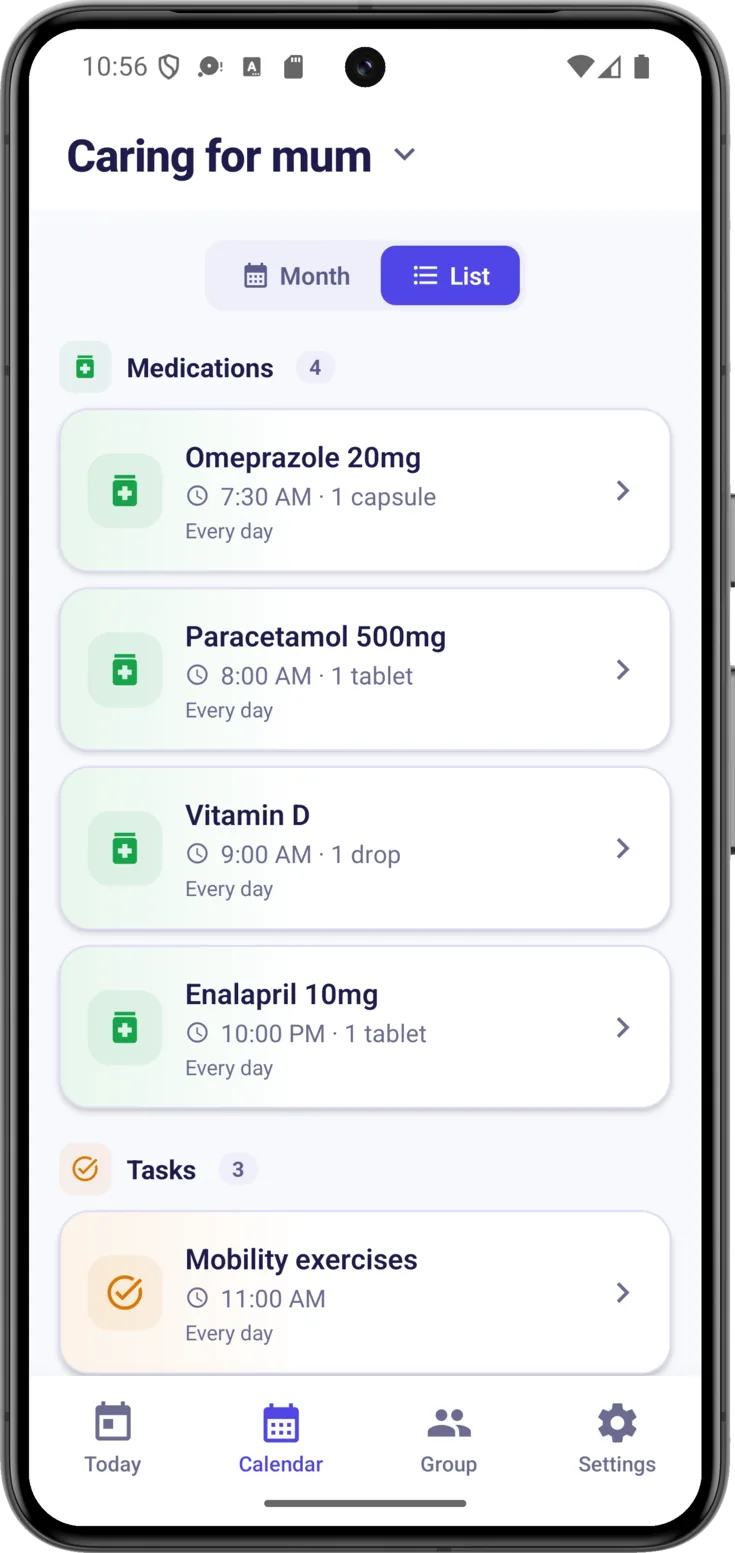
«List» is the catalogue of what is in force right now, grouped by type and with the number of each one beside it. It is handy for going over the complete medication without opening day after day.
Two things set it apart from the Month view:
- There is one card per routine, not one per time of day. A medicine given three times a day appears here just once, with its frequency written on the card, whereas in the Month view it appears three times on the day, once for each time.
- Anything that has already finished does not appear. If a medication had an end date and that date has gone by, it disappears from here. It has not been deleted: this is the catalogue of what is current, not the history.
If the group has nothing created, you will see «No routines» and «Create one from the floating button on Today».