
CarePilot can be used without paying anything, and for a great many people the free plan is enough. The paid ones are there for when you start running short: more people in the group, more medications, being able to keep photos in documents and in expenses, and seeing further back in the history.
Who has to pay
In CarePilot the plan doesn’t go by person but by group, and each group inherits the plan of whoever organizes it. If the person who created the group has Plus, everyone inside works with the Plus limits without paying anything, whether you are family, professionals or a mixture of the two. When several people share the care between them, it’s enough for one of them to pay, and that one is the person who organizes the group.
What each plan includes
The limits below are those of a group whose organizer has that plan. The rows marked (personal) are the exception: for those what counts is your own plan, not the plan of whoever organizes the group.
| Free | Plus | Pro | |
|---|---|---|---|
| Groups you organize (personal) | 1 | 3 | 10 |
| Groups you’re invited to (personal) | 1 | 5 | 15 |
| People per group | 2 | 6 | 16 |
| Medications | 10 | 30 | Unlimited |
| Appointments | 10 | 30 | Unlimited |
| Tasks | 10 | 30 | Unlimited |
| Notes | 10 | 30 | Unlimited |
| Documents | 3 | 30 | Unlimited |
| AI scans (personal) | 3 to try | 30 a month | Unlimited |
| Photos in documents and expenses | — | ✓ | ✓ |
| History you can see | 14 days | 6 months | All of it |
| Weekly summary | — | ✓ | ✓ |
| PDF report | — | ✓ | ✓ |
| Spending analysis | — | ✓ | ✓ |
| Color themes (personal) | Light and dark | 4 themes | All of them |
| Custom expense categories | — | — | ✓ |
| Schedule the next turn | — | — | ✓ |
| Smart spending alerts (they warn you about spending outside the usual) | — | — | ✓ |
The plans screen
Open it and compare with no commitment
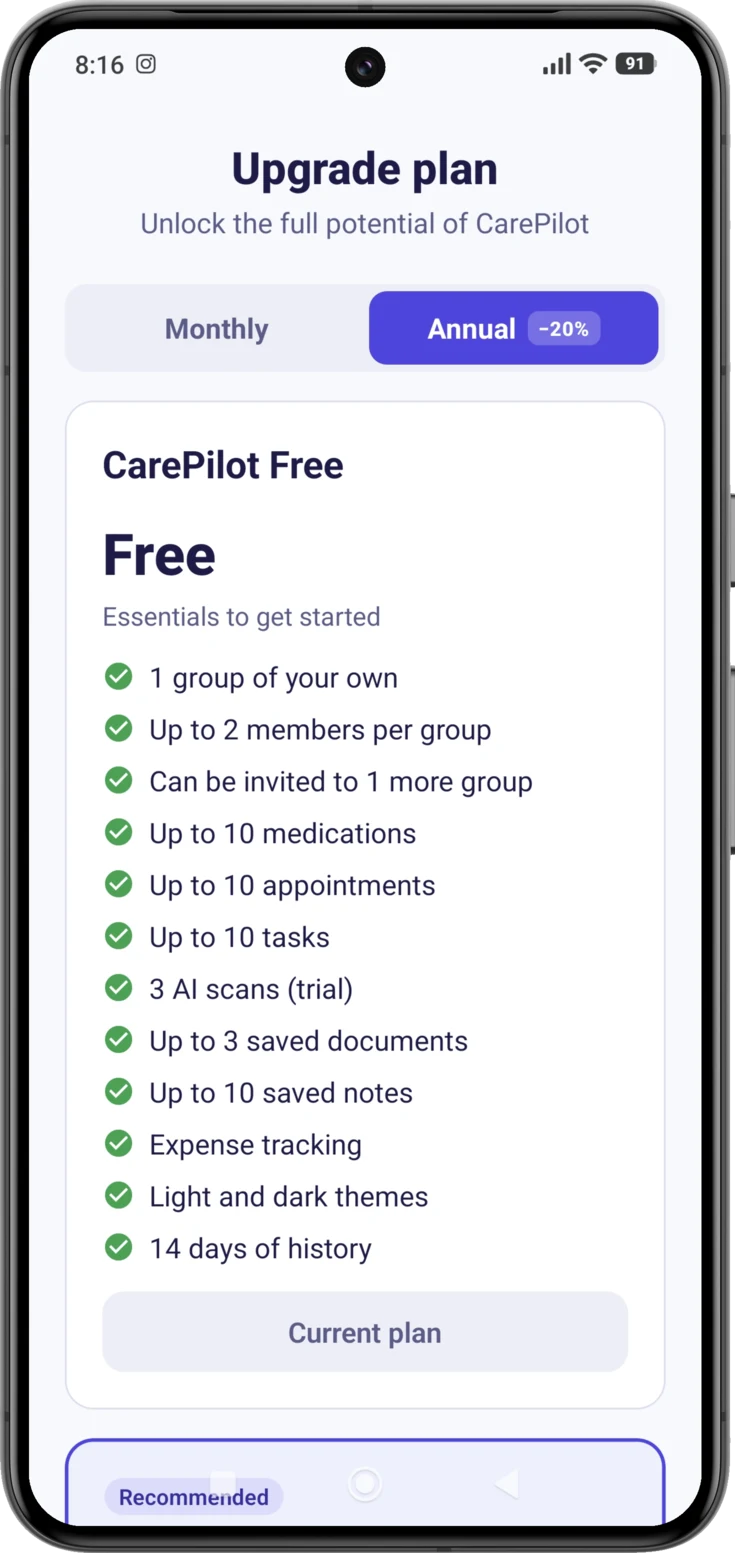
You open it from Settings → «My plan». The screen is titled «Upgrade plan» and it is where you see the plan you have now and the full comparison of the three; in the rest of this guide we call it «the plans screen».
The switch at the top changes the price the cards show: «Annual» works out 20% cheaper than «Monthly». The plan you already have is marked «Current plan» and carries no purchase button; the other two do.
Upgrading your plan
Choose the plan and confirm in the store
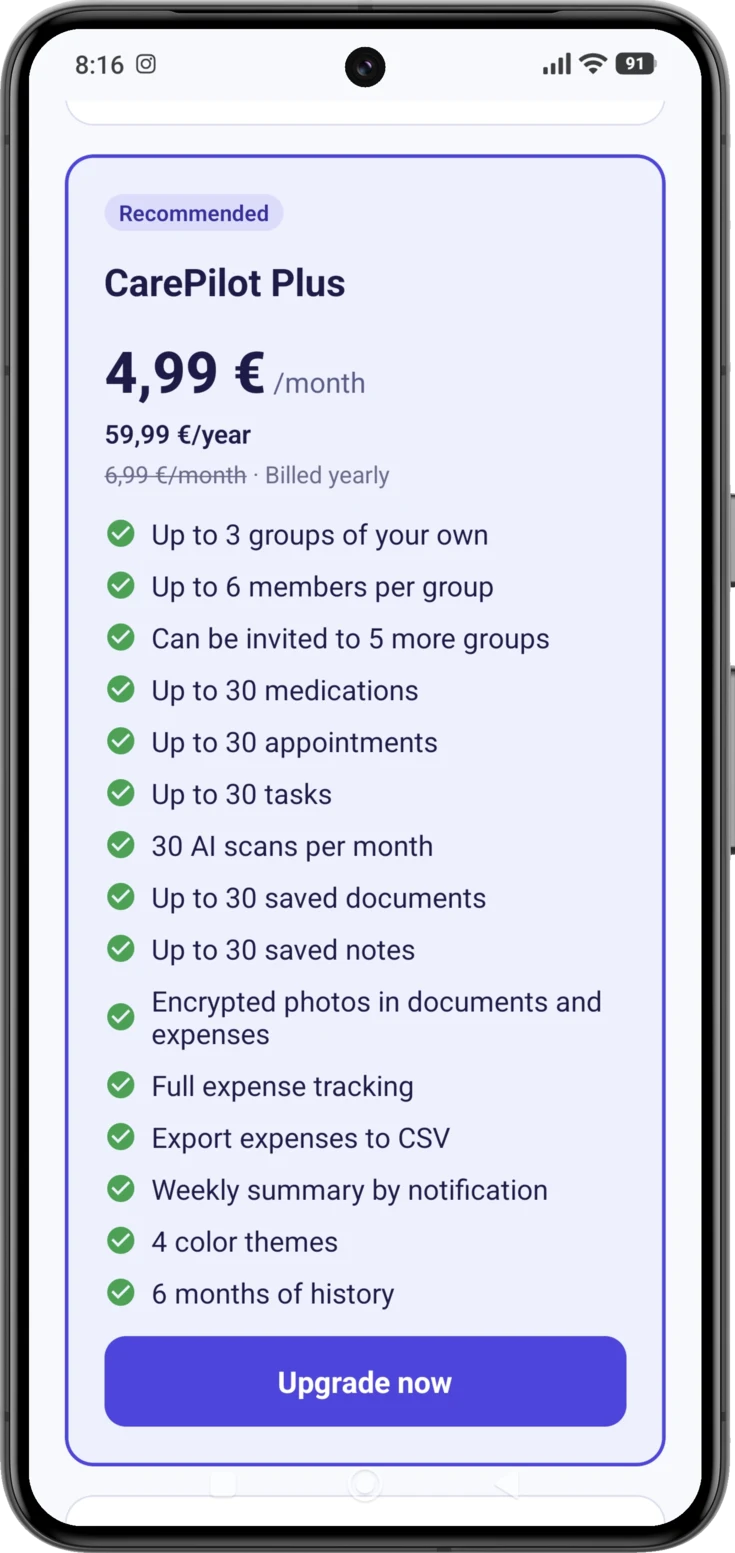
On the card of the plan you want, tap «Upgrade now». From that point on CarePilot is no longer the one in charge: the purchase window of your store opens, the same one you use for any other app, and there you confirm with your fingerprint, your face or your password.
We neither see nor store your card details: the charge is made by the store. As soon as it is confirmed, the new limits are available straight away for the whole group.
Restoring a purchase
It can happen that you are paying and the app shows you as Free, above all when you reinstall or when you change phones: the subscription is alive in the store, but this phone doesn’t know it yet.
Tap «Restore purchases»
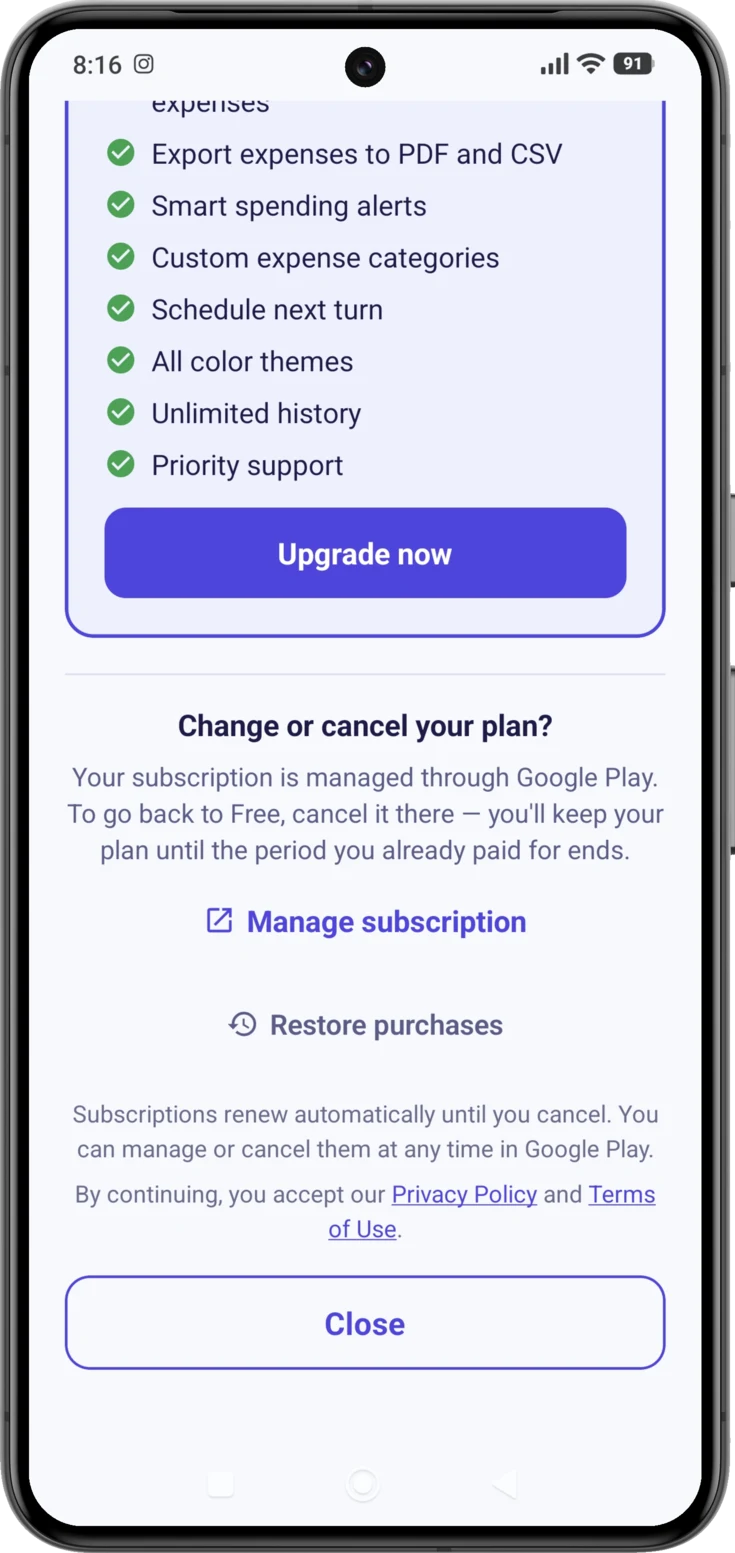
It’s at the bottom of the plans screen and always visible, whatever plan you have. When you tap it, CarePilot asks the store what you have bought and gives you your plan back.
If it says «No purchases found to restore», check that you have signed in to the store with the same account you bought it with: that is the most common cause.
Changing or cancelling
The subscription is not cancelled inside CarePilot: it is managed by the store you bought it from. The shortcut is on the plans screen, at the bottom: «Change or cancel your plan?» with the «Manage subscription» button, which only appears if you already have a paid plan.
Android
That button takes you to the subscriptions page on Google Play, where you can change plan, move from monthly to annual or cancel.
iPhone
That button opens the iPhone’s own subscriptions sheet, managed by the App Store, where you can change plan, move from monthly to annual or cancel.
What happens when the subscription ends
Nothing is lost. Not a group, not a routine, not a note, not a document, not a photo.
What happens is that the groups that go beyond the limits of the free plan switch to read-only mode: you can go in, look at everything and read the history, but not add or change anything. They can be edited again as soon as whoever organizes the group upgrades to a plan that covers it.
There is a consequence of this that is worth keeping firmly in mind, because it cannot be seen on the screen: in a group in read-only mode the alerts for missed doses, appointments and tasks stop being sent. The usual reminders still go off at their time, but the notice that comes afterwards —when something has been left unmarked— does not arrive. If the group has been frozen for days, nobody receives that second nudge, so it is worth going through the Today screen by hand until it is reactivated.
If you organize more groups than your new plan covers, the oldest ones stay active: one with Free, three with Plus and ten with Pro, counting from the first one you created. It is automatic and there is nothing to choose —nor can there be—, and when you go back to a paid plan they reactivate on their own, in the same order and with everything inside. The groups where you are only an invited member are not affected: those depend on the plan of whoever organizes them, not on yours.
What a group in read-only mode looks like
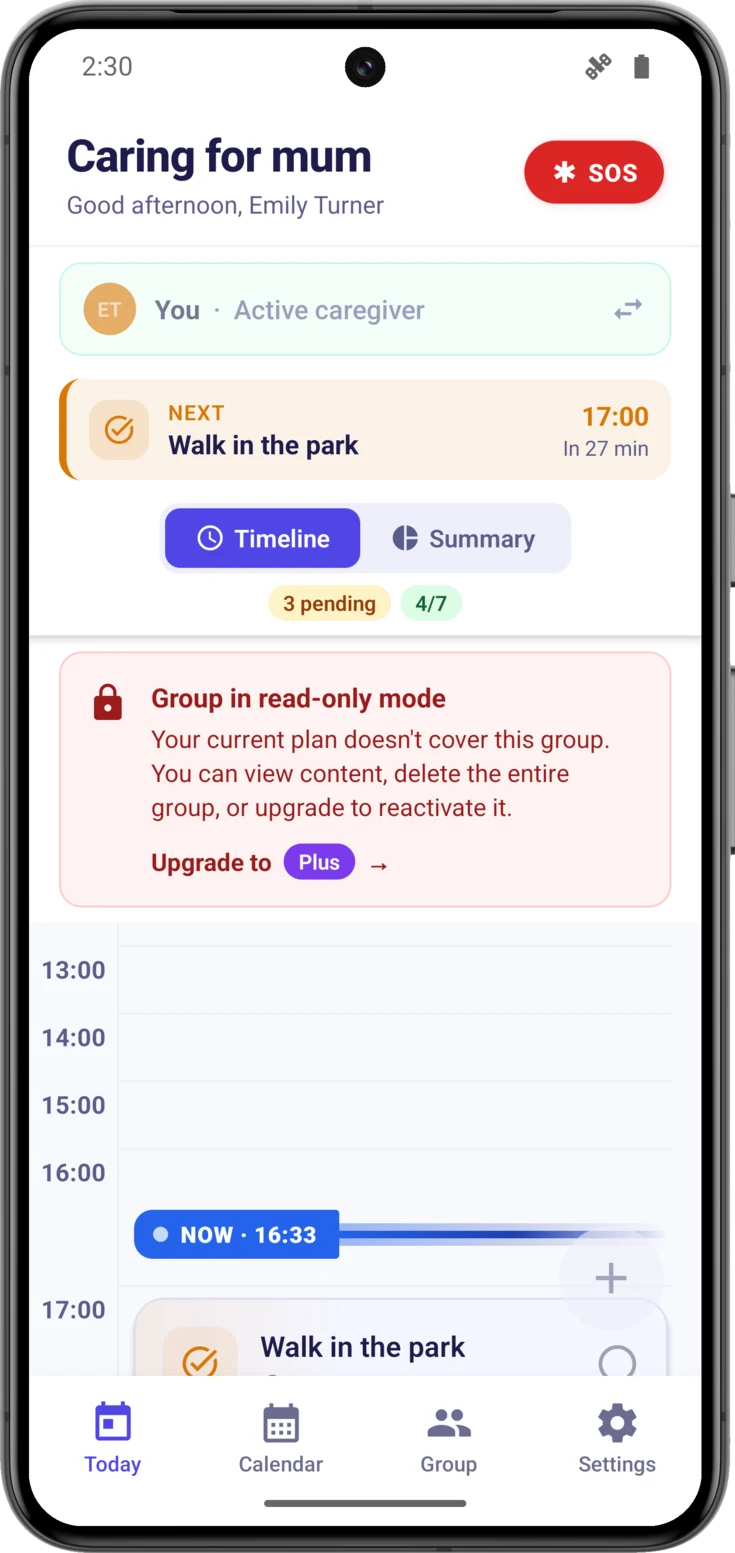
A red notice appears, «Group in read-only mode», fixed just below the header in Today, in the Calendar and in Group, and the + button and the marking actions stop responding. That position is what tells it apart from the amber notice of a group with a closing date, which sits above it.
What it says depends on your role:
- If you organize the group: «Your current plan doesn’t cover this group. You can view content, delete the entire group, or upgrade to reactivate it.» Below it, an «Upgrade to Plus» that opens the «Upgrade plan» screen.
- If you are an invited member: «The organizer downgraded their plan, so this group is frozen. You can view content or leave the group.»
When the plan is upgraded, the group can be edited again exactly as it was.
Do take care with the delete option that this notice mentions: if there are other people inside the group, when you ask for it to be deleted the group does not disappear there and then: its closure is announced and it closes seven days later, and within that period it can be cancelled. In the meantime it still counts towards the group allowance of your plan, so deleting it does not free up room for you to create another one until it closes.
If you’ve paid and something doesn’t add up
Go through these three in order; they solve nearly every case:
- Tap «Restore purchases» on the plans screen. It’s the first thing to do, above all if you reinstalled or changed phones.
- Check whose group it is. If the one where you’re running short is organized by someone else, your plan doesn’t unlock it. It isn’t a fault: it’s how it works.
- Look to see whether there’s a red notice in Settings. If it says «Billing issue», the store hasn’t been able to charge you —most commonly an expired card— and all you have to do is update the payment method.