
Notes are the group’s shared notebook: how the person you care for has got through the day, an incident that is worth remembering, a change you have noticed — that they are eating less, that they slept badly, that they seem brighter. What you observe is not lost, and it no longer depends on somebody remembering to mention it.
Be clear about one thing from the start: everything you write will be seen by the whole group. These are not private jottings of yours, they are part of the care.
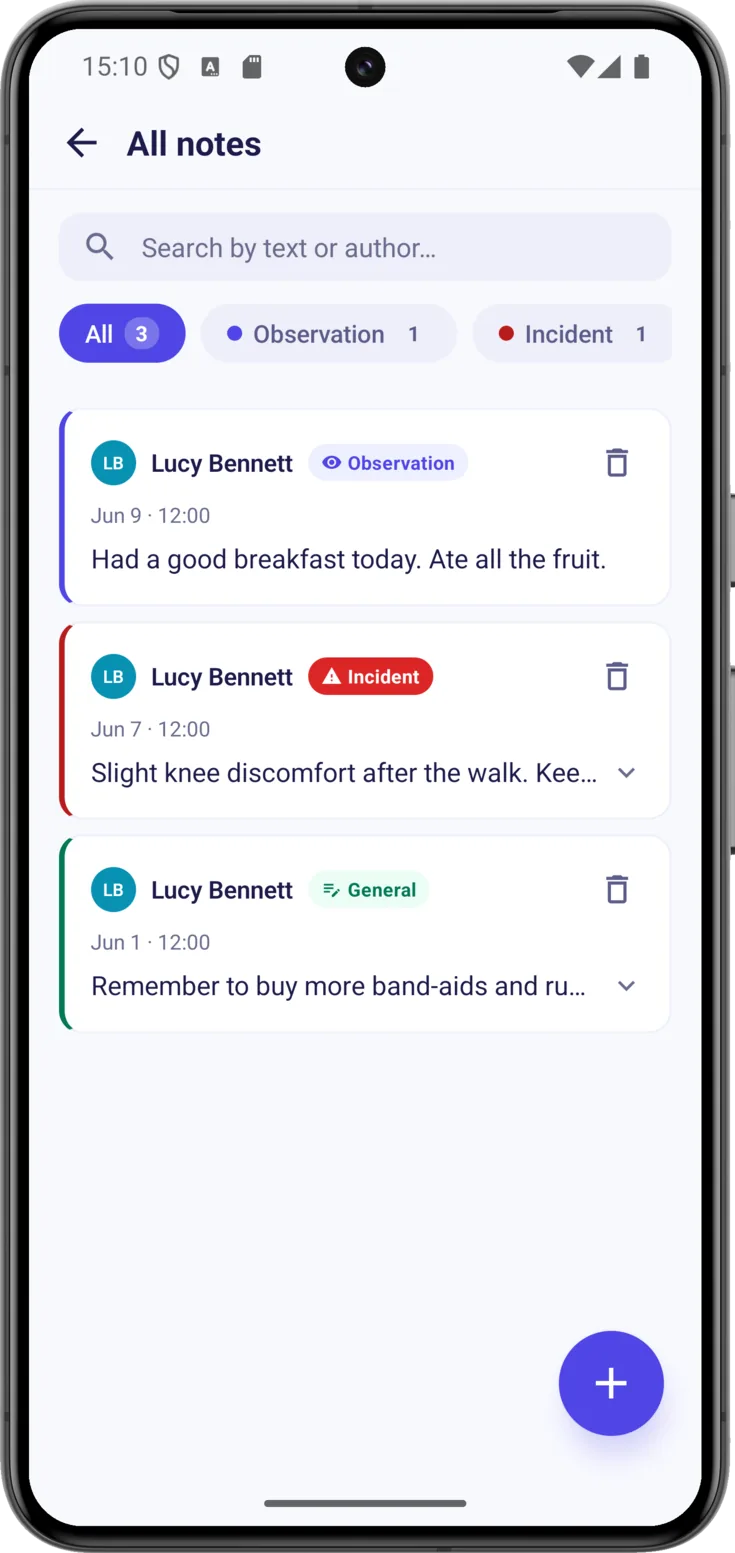
The note list
Tap Group in the bar at the bottom, scroll down to the «General resources» block and open the «Notes» card, which already tells you how many are saved: you will land on the «All notes» list.
Search and filter through the notes
Type a word from the note, or the name of whoever wrote it, into the search box , and the list keeps only the ones that match. The filters underneath do the same thing by type, with a single tap.
If a note is long it appears trimmed: tap it to unfold it.
Creating a note
A note can be started from two places, and both lead to the same form. The first is the + button on this very list. The second is the + on the Today screen: when it opens, under «Or add manually», you will find the «Note» card. That second route is the comfortable one when you are with the person you care for and want to jot something down there and then.
Choose the note type
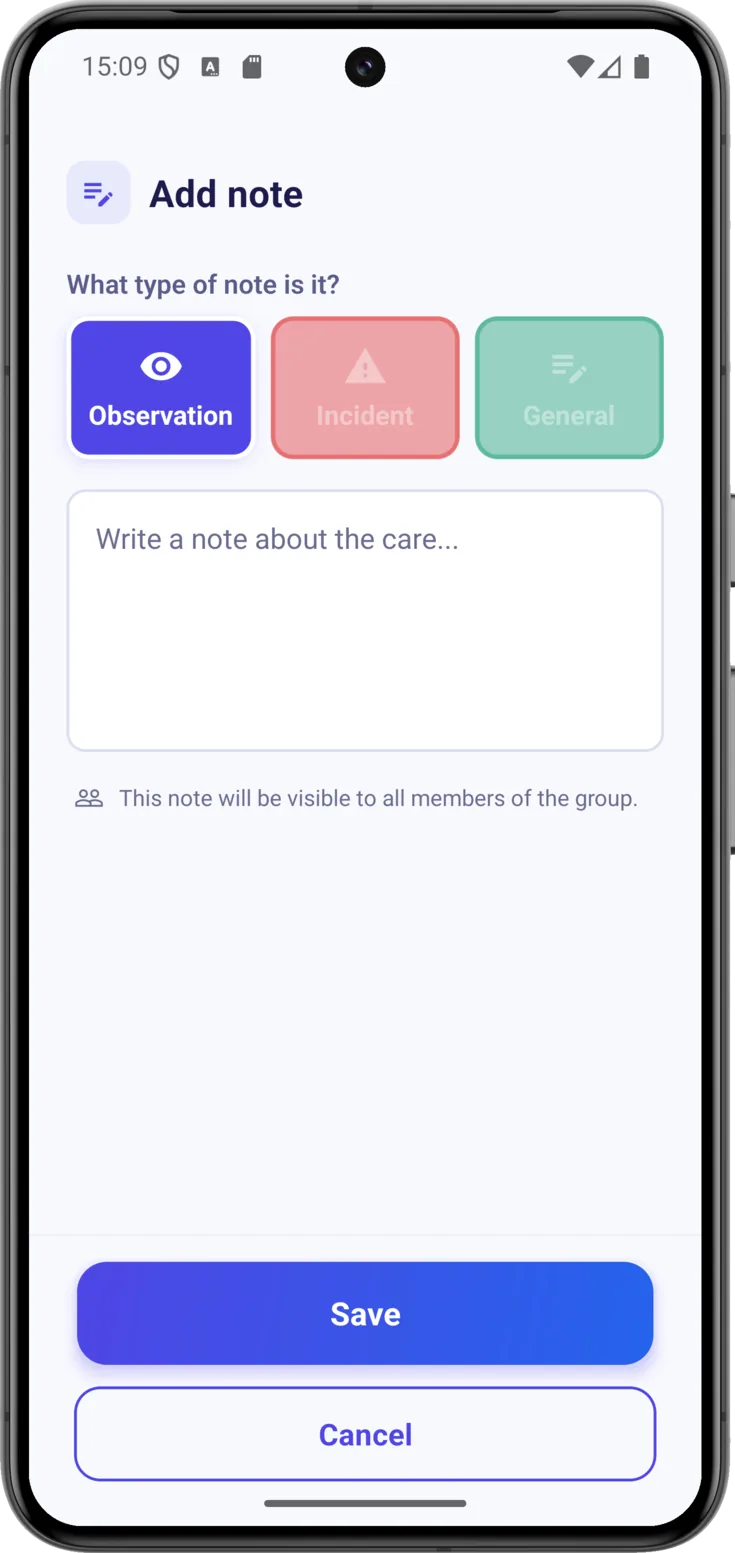
When you tap , the first thing you see is «What type of note is it?». The type is only there to sort the notes and give them a colour, so pick whichever fits best:
- Observation — something you have seen that is worth writing down, without being a problem: «ate with a good appetite today».
- Incident — a problem or an important event that you want to stand out: «felt dizzy when getting up».
- General — anything else.
Write the note and save it
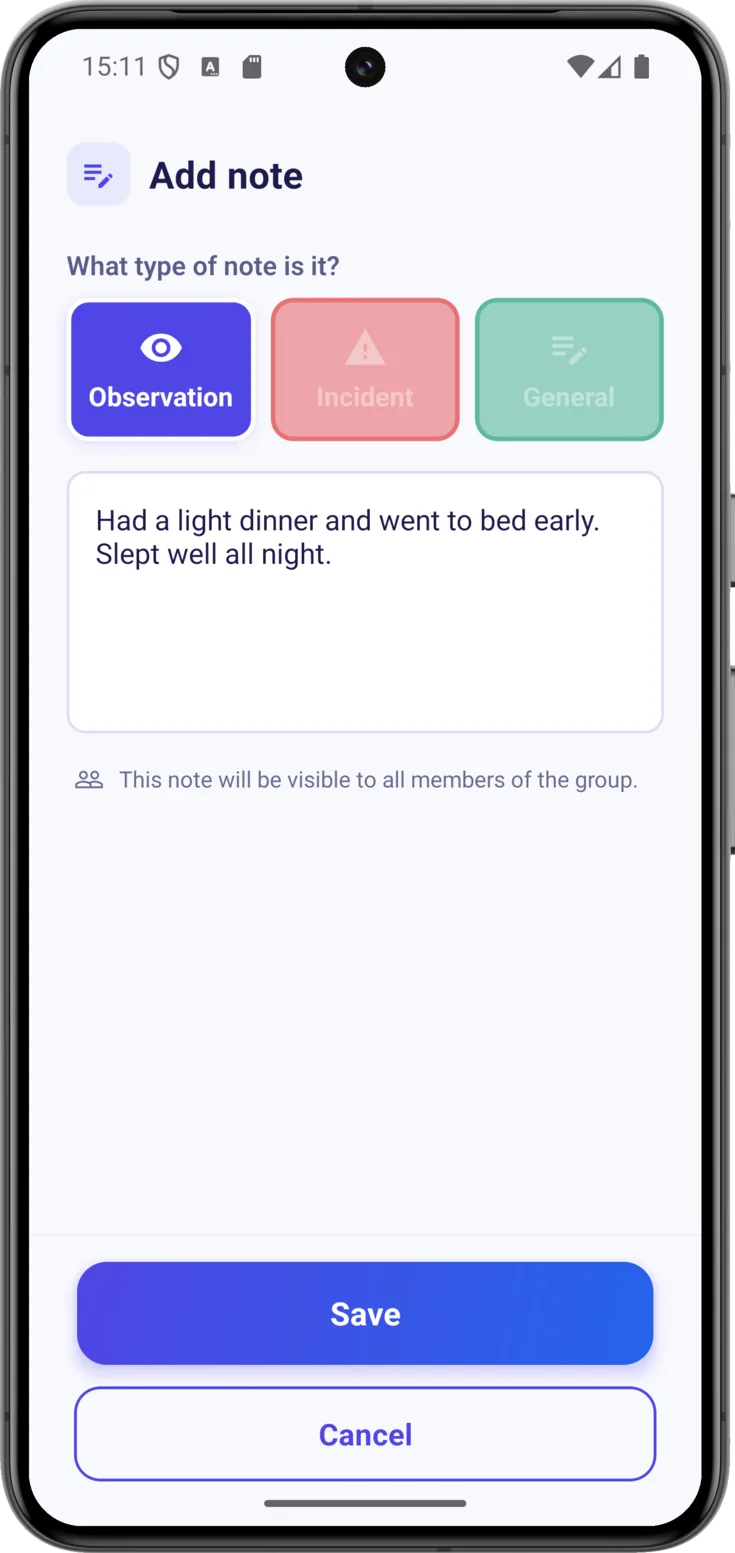
Tell it in your own words in the box below: it does not have to be formal or long. Once you have written it, tap «Save».
The note is saved with your name and the date and time, so whoever reads it will know who wrote it and when without having to ask.
Deleting a note
Every note carries a stripe along its edge in the colour of its type — blue for Observation, red for Incident and green for General — which lets you recognize them at a glance when the list grows long.
Delete a note that is no longer needed
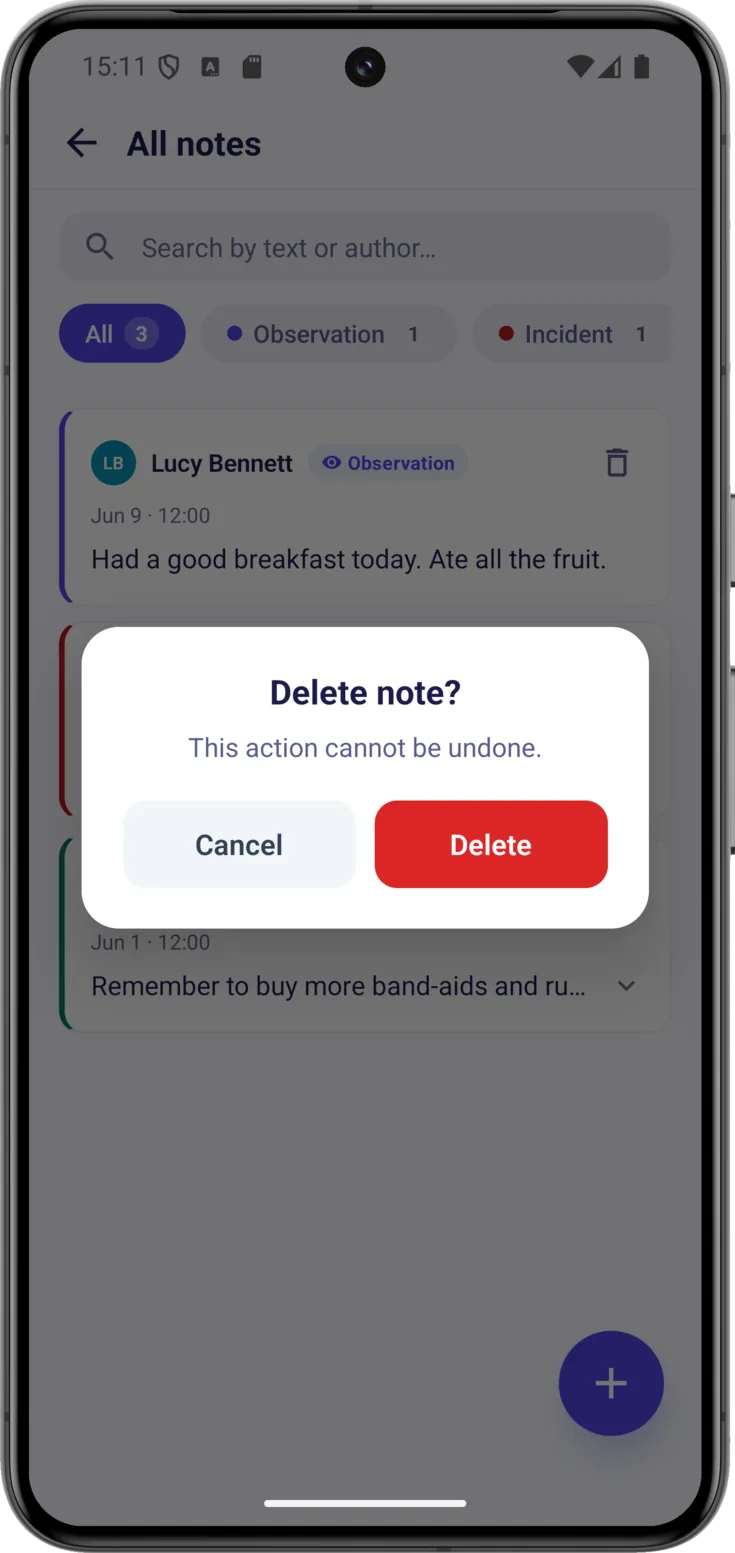
Tap its delete icon . The app asks you to confirm — «Delete note?» — because once it has been deleted it cannot be recovered.
That bin does not appear on every note, and it is worth knowing why: it only shows up on the ones you are allowed to delete, which are your own, all of them if you organize the group, or all of them if the organizer gave you the delete permission. If the group is in read-only mode or has an announced closure, it does not appear on any of them, not even for whoever organizes it.
How many notes you can save
Each plan has its own ceiling, and a bar above the list tells you where you stand — «X of Y notes saved» — so that it does not catch you by surprise.
| Free | Plus | Pro | |
|---|---|---|---|
| Saved notes | 10 | 30 | Unlimited |