CarePilot encrypts all your information end-to-end: everything you write down about the care is stored scrambled, in such a way that not even we can read it.
That has a consequence which is worth understanding: since nobody else can open your data, you are the one who keeps the keys. This is not like email, where if you forget your password they send you another one. Here nobody holds a copy. It sounds worse than it is — if several of you share the caring there is always a way out — and that is what this guide is about.
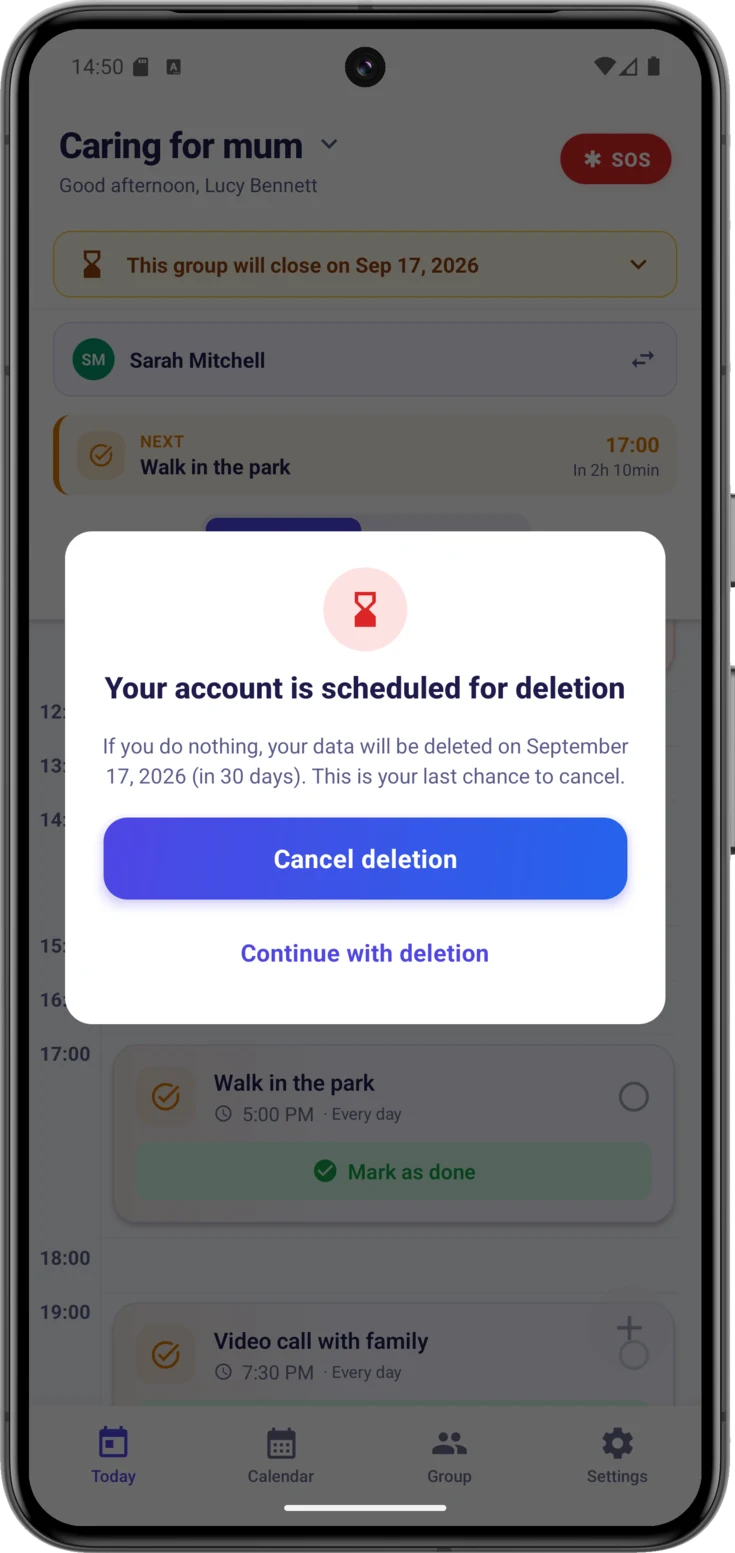
Verify your email
Confirm when you can
If you signed up with an email address and a password, in Settings — the last button on the bottom bar — a notice appears that says «Verify your email». Open your inbox, look for the message from CarePilot and tap the link it contains.
If you cannot find it, look in the spam folder; and if it still does not appear, tap «Resend email». Once you have tapped the link, come back to the app and tap «I’ve verified».
The PIN and the backup code
They are your safety net: what keeps you from losing access even if something happens to your phone.
- The PIN is the main key: 4 to 12 numbers, like the one on your bank card. You set it when you started, because it is required. With it you recover your groups if you change phones.
- The backup code is the emergency key, for the day you forget the PIN. It is optional, but generating it is the difference between recovering your data and losing it. Inside the app you will also see it written as «Recovery code»: it is the same code with two names, not two different keys.
Generate your backup code
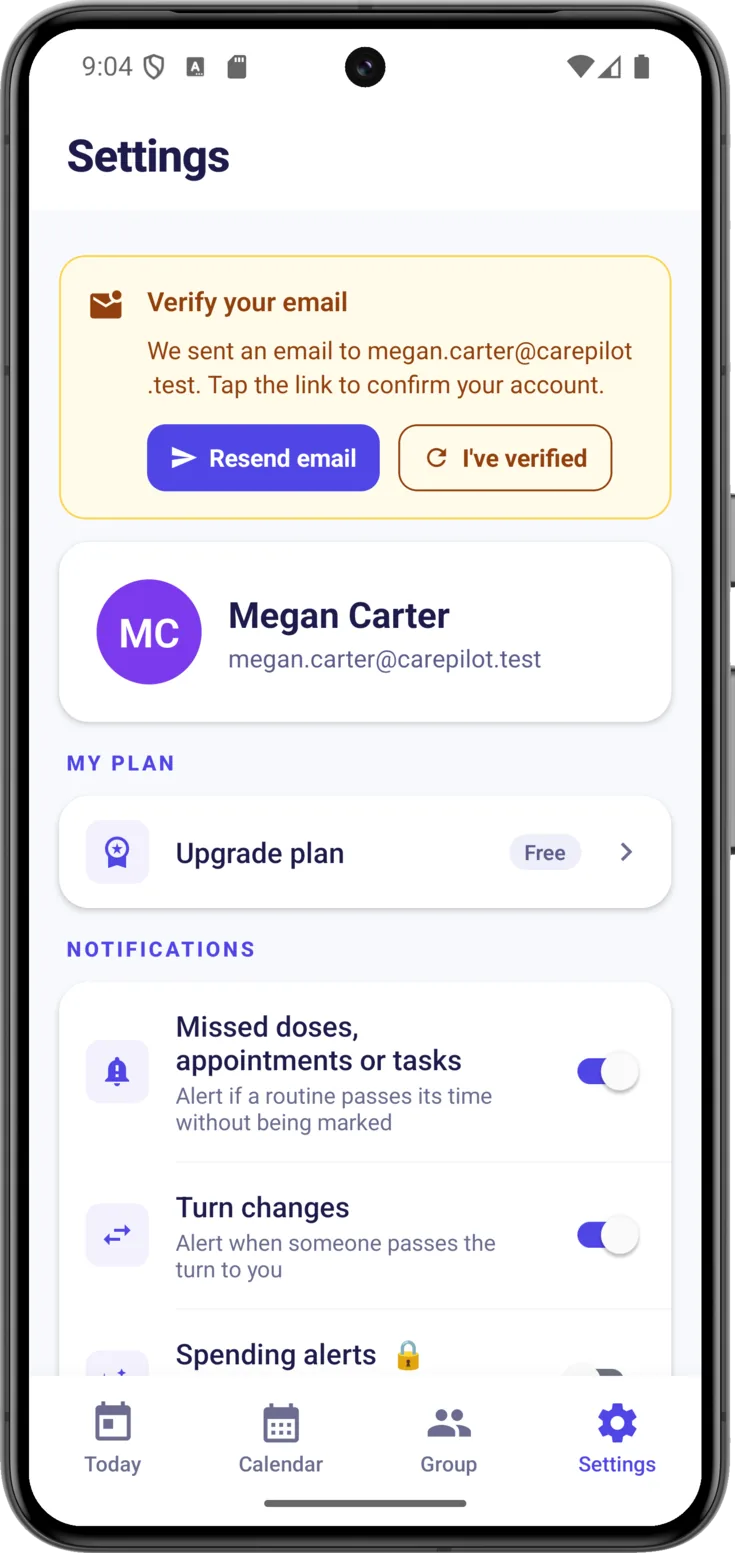
In Settings → Privacy & Security → «Backup code» , tap «Generate». Pay attention at this moment: it is shown only once.
Store it with «Copy code» or «Save as PDF» , tick «I have saved my recovery code in a safe place» and tap «Finish».
Keep it somewhere that does not depend on the phone — a piece of paper in a drawer, your email. If you leave it only inside the phone and you lose the phone, it is of no use at all.
Change the PIN whenever you want
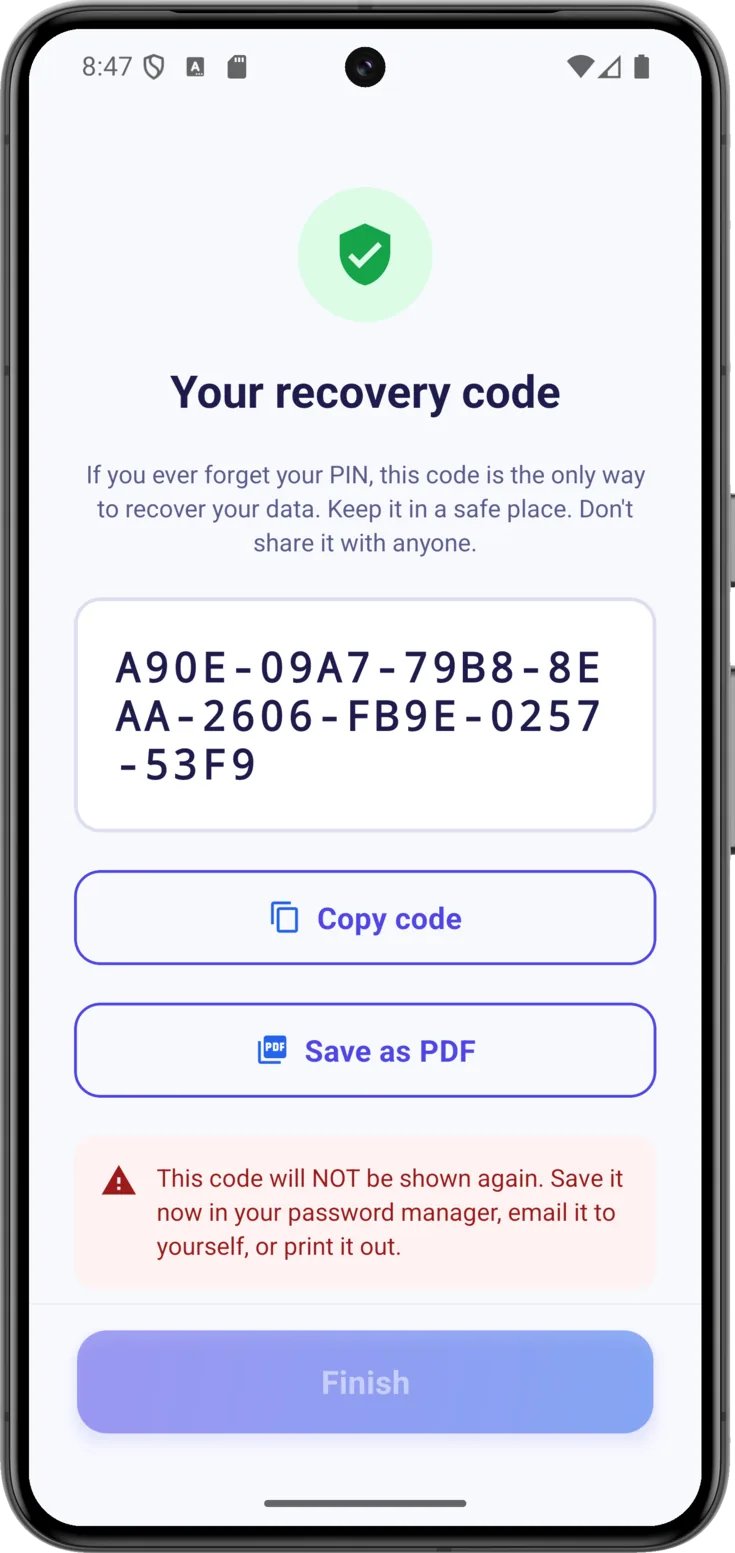
Open Settings → Privacy & Security → «Change PIN» and fill in the three fields: the «Current PIN», the «New PIN (4–12 digits)» and «Repeat new PIN». Confirm with the «Change PIN» button at the bottom.
Do bear one thing in mind: when you change the PIN, a new backup code is generated too and the previous one stops working, so store the new one just as you did with the first.
Recovering your account on a new phone
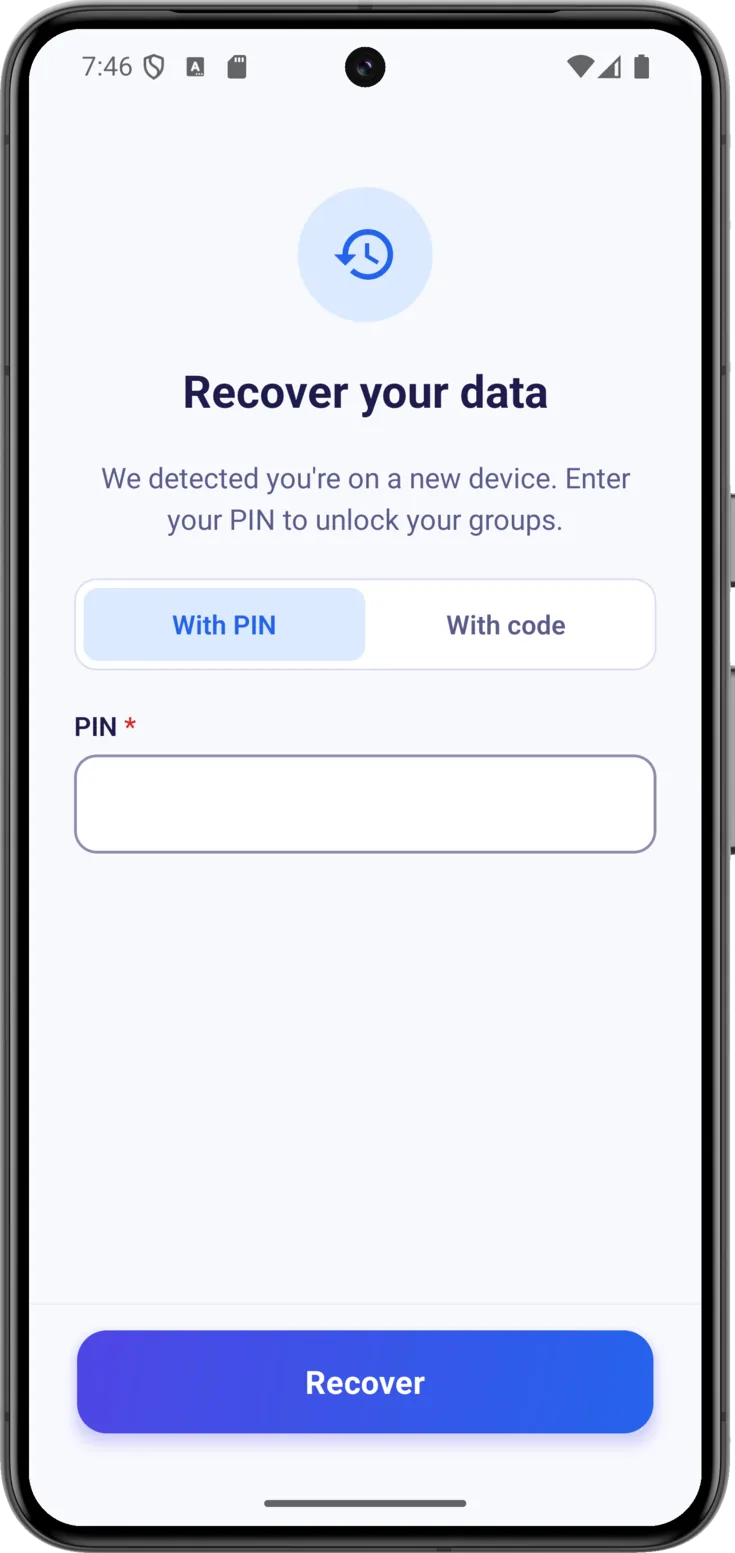
Install CarePilot on the new phone and sign in as always. The app detects that the device is new and takes you to the «Recover your data» screen, where you choose which of the two keys you want to get in with: «With PIN» or «With code».
Recover with your PIN
With «With PIN» selected, type it in and tap «Recover». Within a few seconds the app confirms how many groups it has restored and everything is back: routines, notes, expenses and documents.
If you get it wrong, it lets you know with «Wrong PIN» and tells you how many attempts are left. After ten failures in a row it locks for an hour — it is not a punishment, it is so that nobody can guess it by trying numbers.
Don't remember the PIN? Use the code
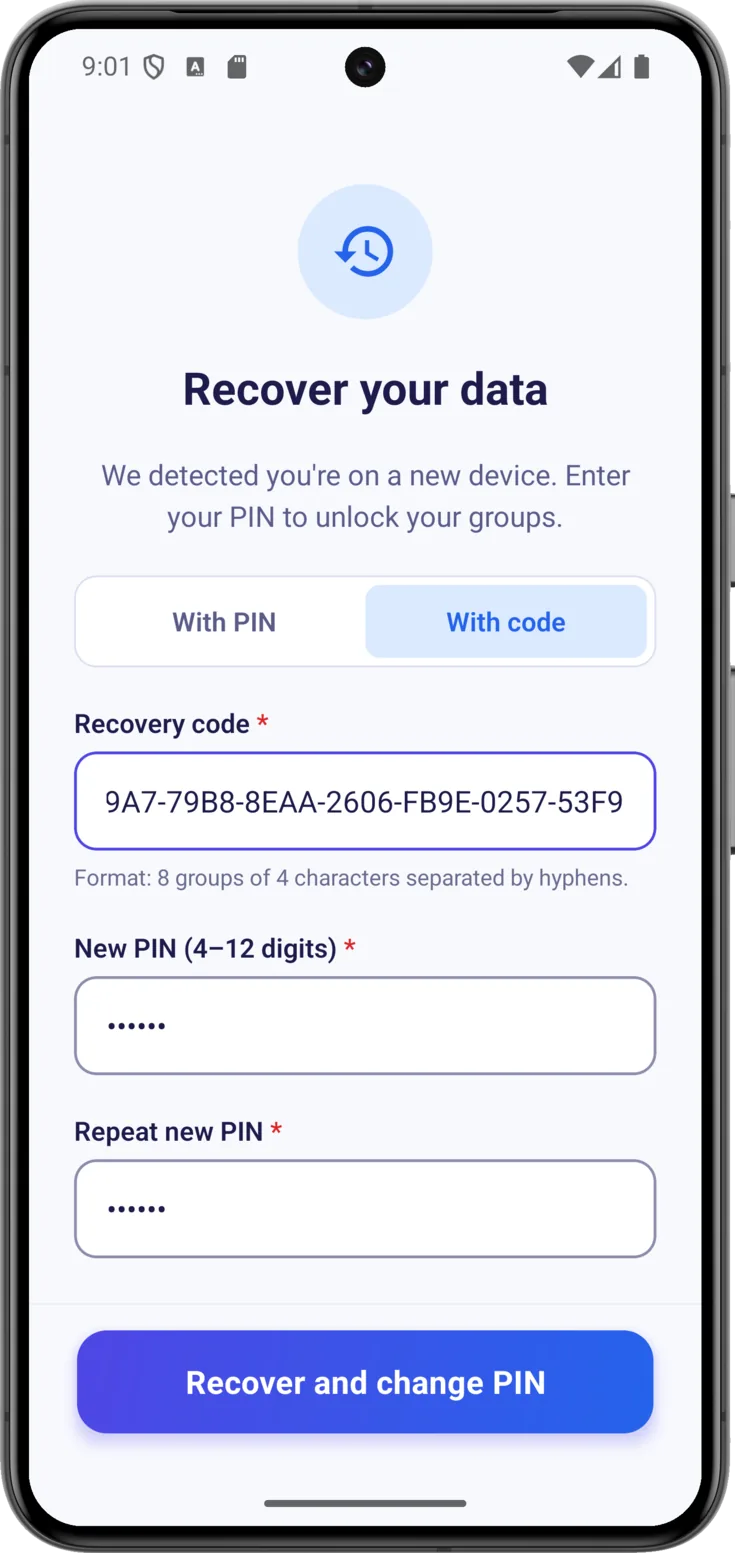
Switch to «With code» and type it into «Recovery code»: it is 8 groups of 4 characters separated by dashes, and the screen itself reminds you.
Since the old PIN is no longer any use, you choose a «New PIN (4–12 digits)» right there and repeat it. Tap «Recover and change PIN». If it says «Wrong code», check it character by character: it is long on purpose and it is easy for a letter to slip out of place.
Save the new code it gives you
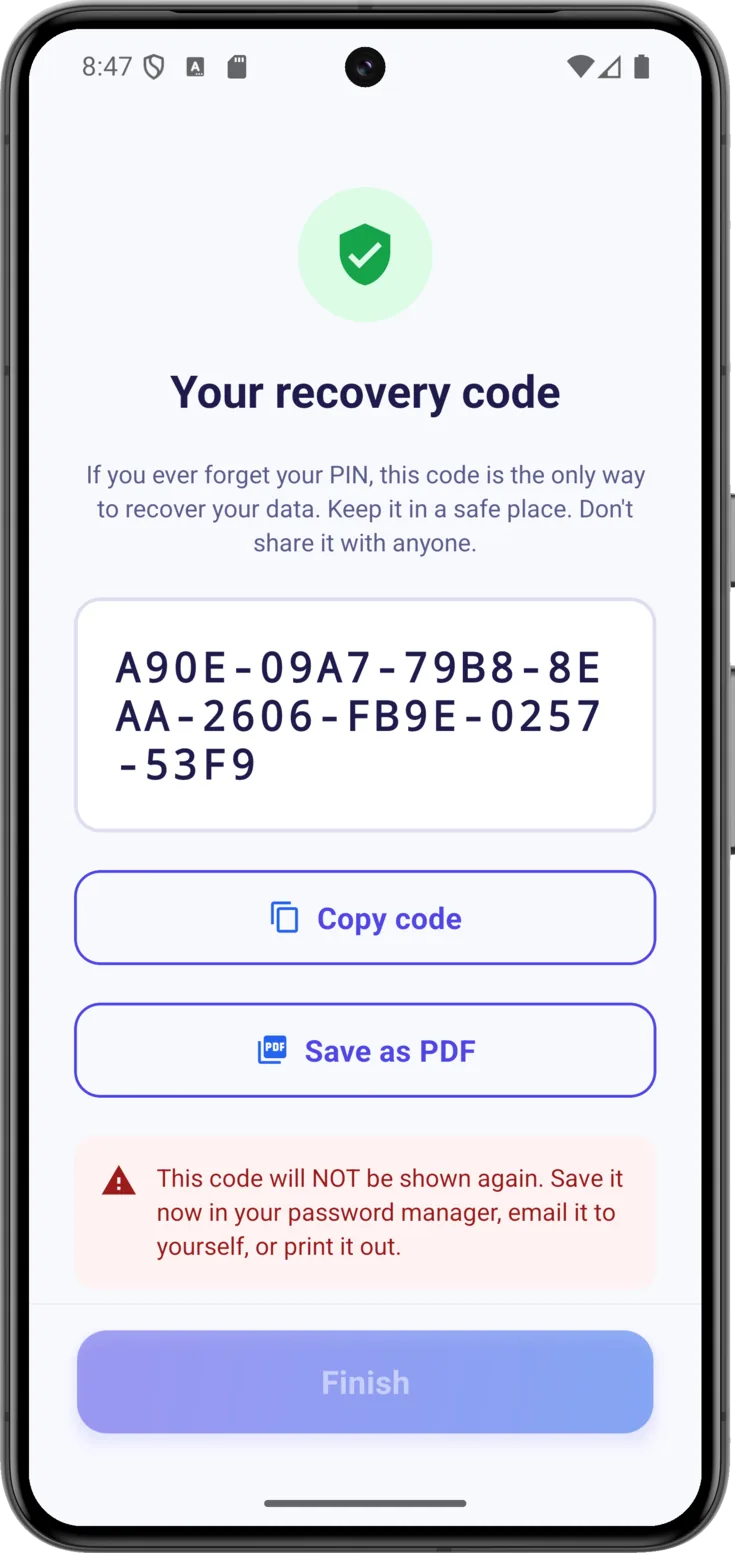
When you recover with the code, that code is used up. The app generates another one there and then and shows it to you under «Your recovery code», once only, just like the first time.
Store it the way you already know — «Copy code» or «Save as PDF» —, tick the box and tap «Finish». Your groups open up again with everything inside.
Don't have either of the two? Have someone invite you again
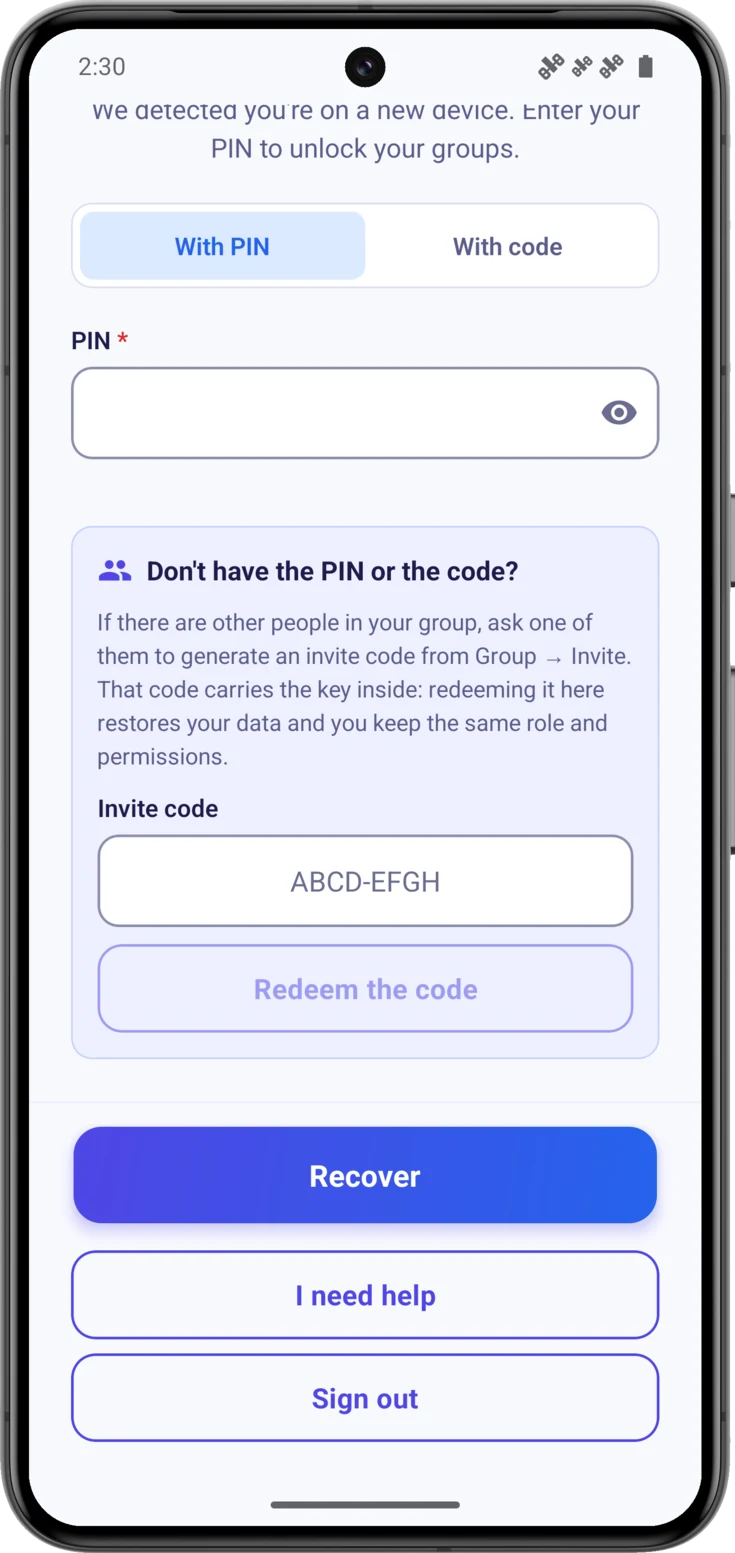
If you do not remember the PIN and did not generate the code either, there is still one way out: ask someone in your group to generate an invitation code for you from Group → Invite. That code carries the key inside it. If that group has a closure date, the app does not let new codes be generated for it and this way out is not available.
Type it into «Invite code» and tap «Redeem the code». You recover your data and you keep the same role and the same permissions: you do not come back into your own group as a guest. If you had several groups, each one needs its own code, and the app keeps telling you how many are left.
This block only appears if there are other people in the group, because that is the only situation in which somebody can hand you that key. If you were caring on your own, it does not show up.
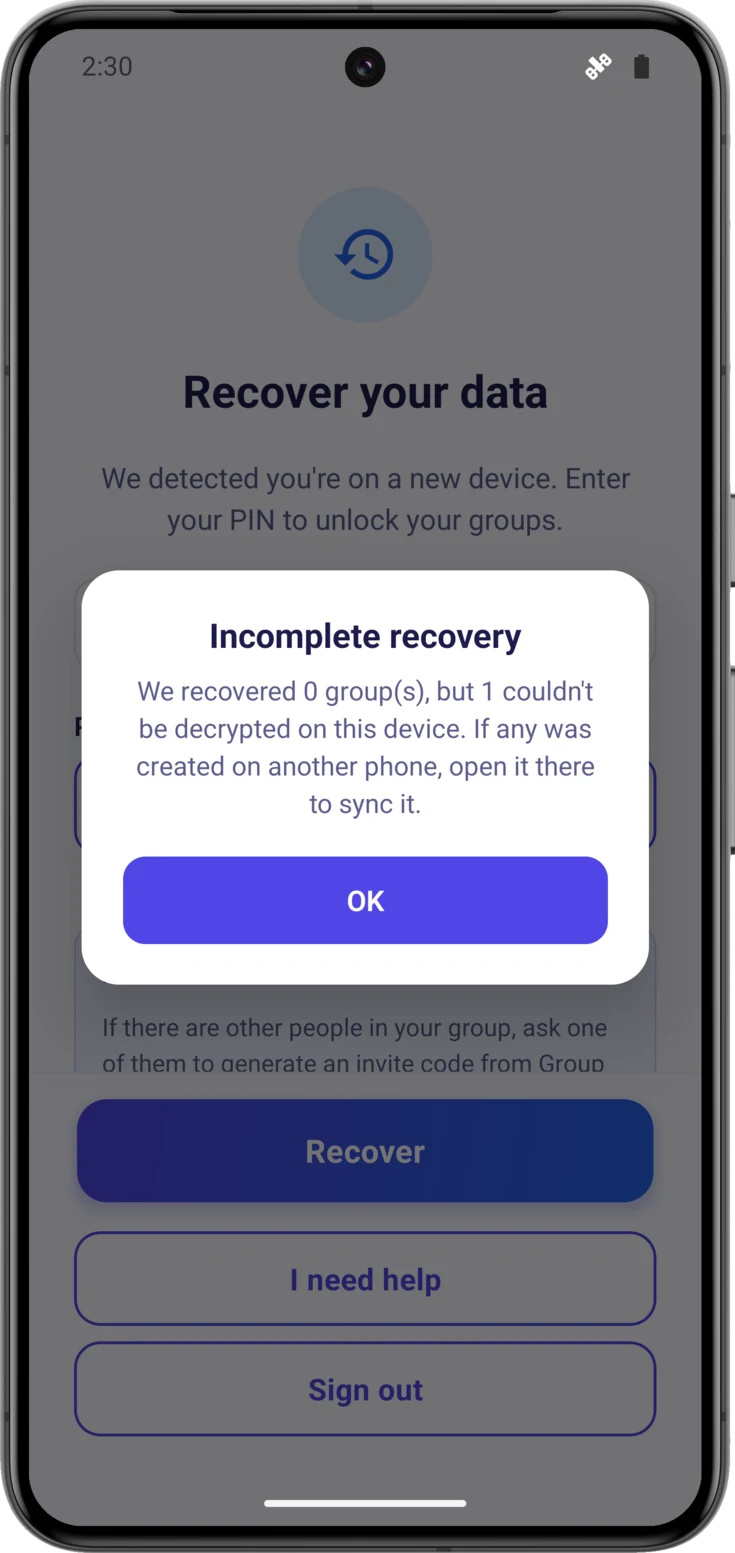
If it says «Incomplete recovery»
Sometimes the app recovers some groups and not others, and it warns you with «Incomplete recovery», telling you how many it has recovered and how many it could not decrypt.
It is not a fault. It happens when one of those groups was created on another phone and its key never reached this one. The solution is the one the message itself suggests: open the app on that other phone and the group syncs by itself.
In the meantime that group stays in look-but-don’t-touch mode, and if you try to save something it warns you: «This group isn’t unlocked on this phone, so nothing encrypted can be saved». The others work as normal.
If this phone has no key at all
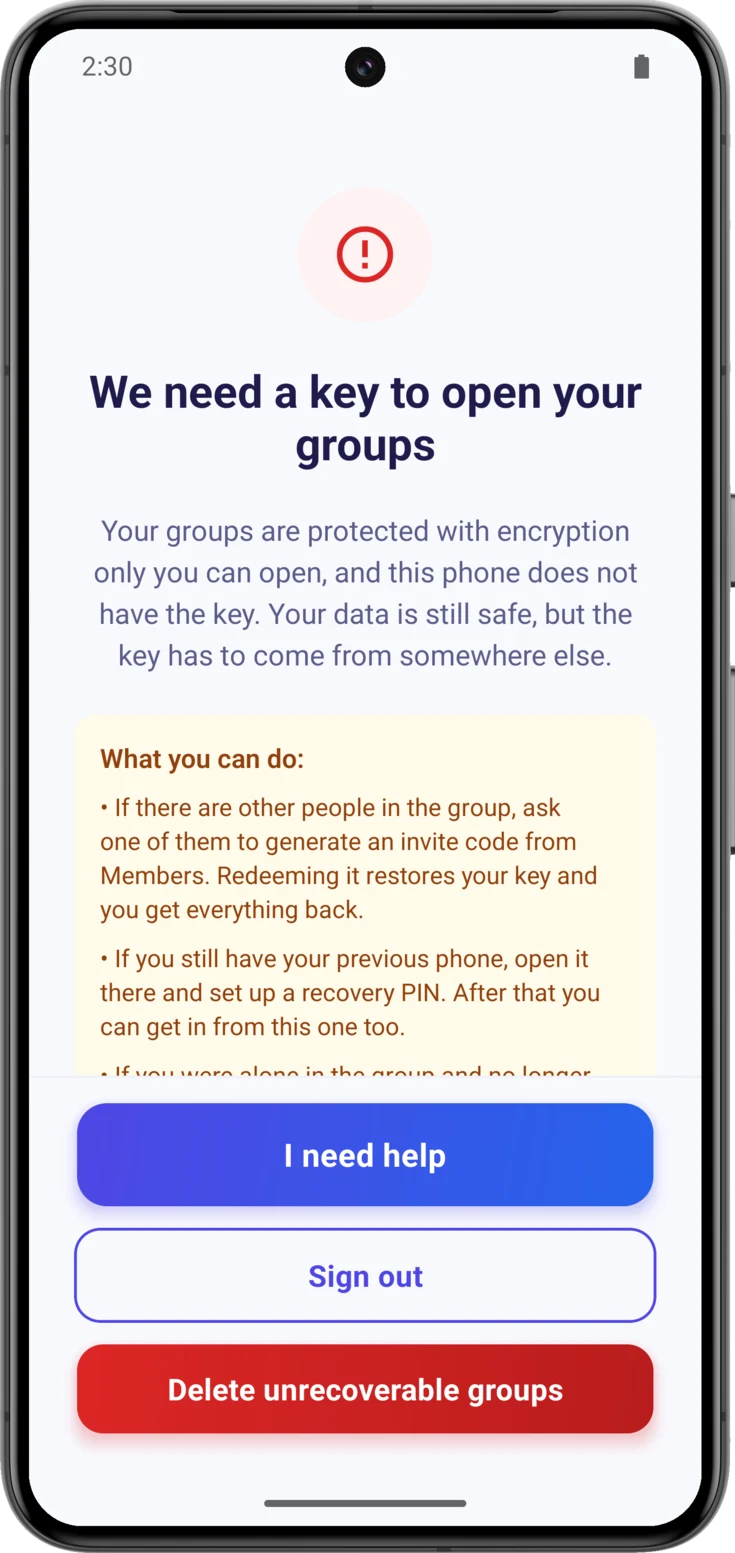
The app may greet you with «We need a key to open your groups». It sounds alarming and it is not: your data is safe and encrypted, but this phone has nothing to open it with.
The three ways out it offers you
The screen lists three ways out, from the easiest to the most final, and the first one solves it almost every time:
- Ask someone in the group who has permission to invite for an invitation code, because that code carries the key inside it. How they generate it for you is explained in Care groups, and with it you get access back while keeping your role and your permissions. With one exception: if that group has a closure date, no new codes can be generated.
- Use your previous phone, if you still have it: open it and set up a recovery PIN there.
- Start from scratch, only if you were alone in the group and no longer have that phone.
At the bottom you have «I need help», which writes to us with the details we need, and «Sign out», in case what you wanted was to get in with a different account.
Exporting your data (GDPR)
European data protection law gives you the right to take a copy of your data whenever you want.
Choose what you want to take with you
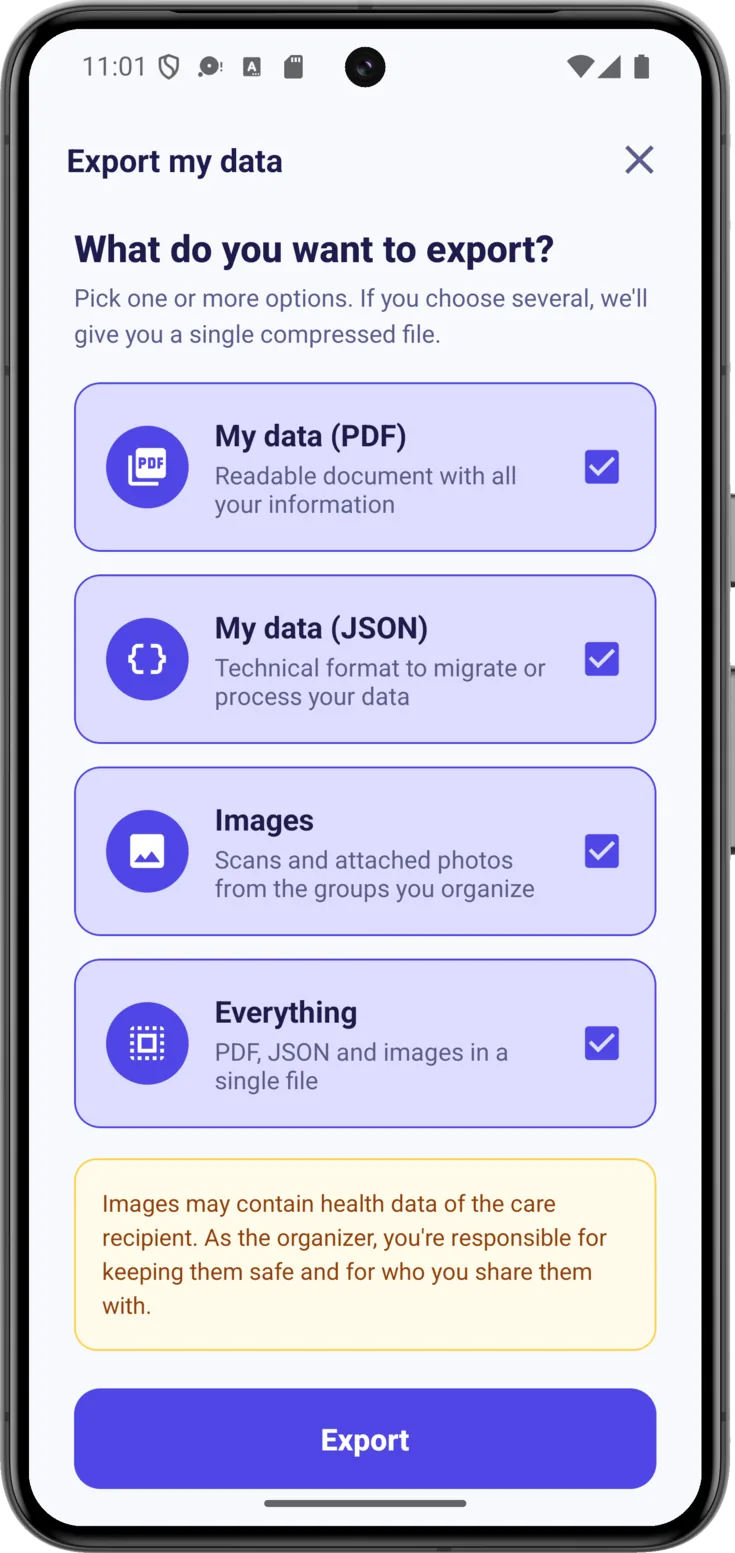
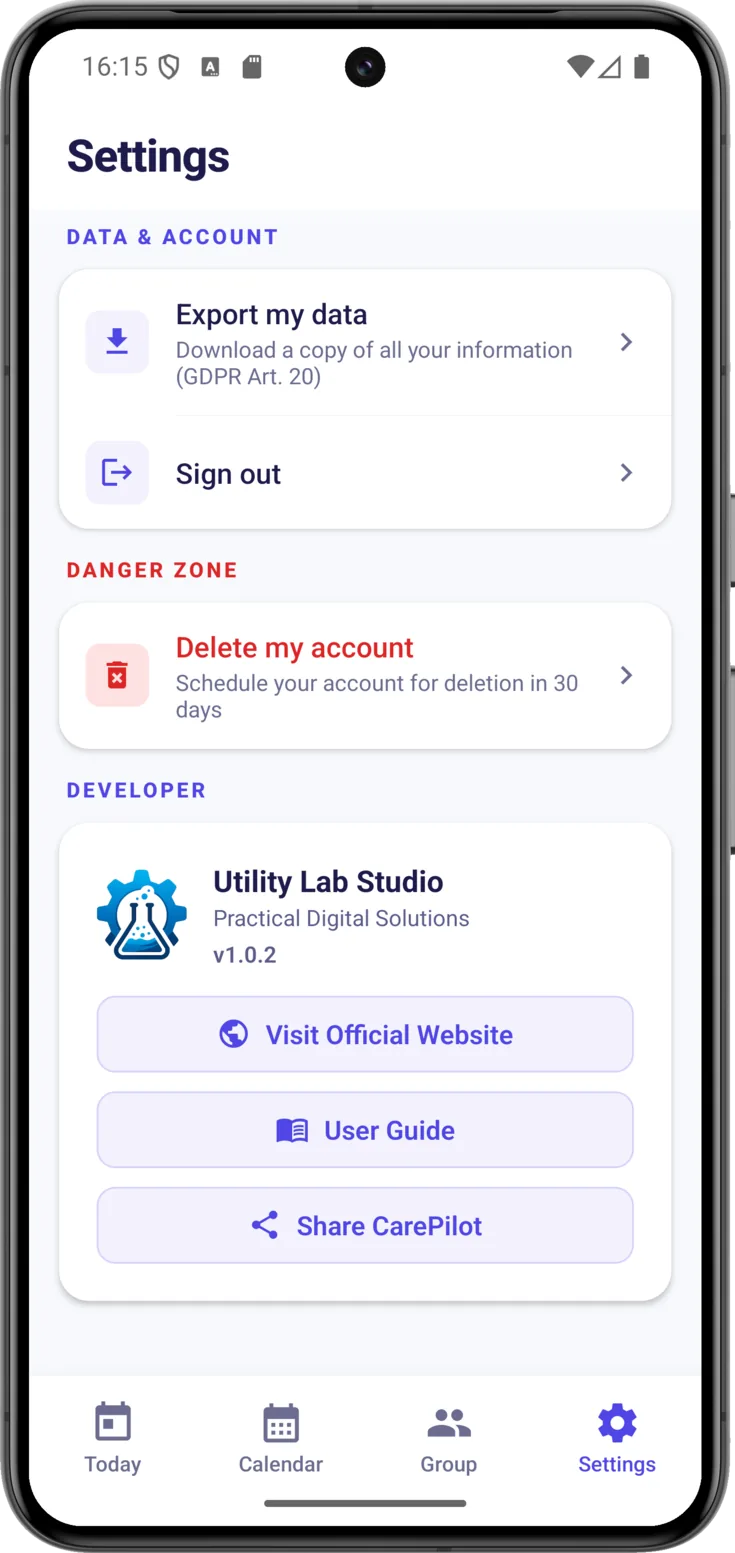
In Settings → Data & account → «Export my data» you choose what to take with you:
- PDF — an easy-to-read document with all your information.
- JSON — the same information in a technical format, meant so that another program can read it. It is the way to exercise your right to portability, the one that lets you take your data to another service without having to copy it out by hand.
- Images — the scans and the attached photos. It only appears if you organize a group, because they may contain health data about the person being cared for and it is the organizer who is responsible for them.
- Everything — the three of them together.
If you choose several, it arrives in a single compressed file. For security reasons, you can only export once a day.
Signing out and deleting the account
They sound alike and they do the opposite.
Sign out
In Settings → Data & account → «Sign out» you leave the app, and that is all. It deletes nothing: your groups and your data are still there, and you come back in whenever you want. It is closing the door on your way out, not moving house.
Delete the account
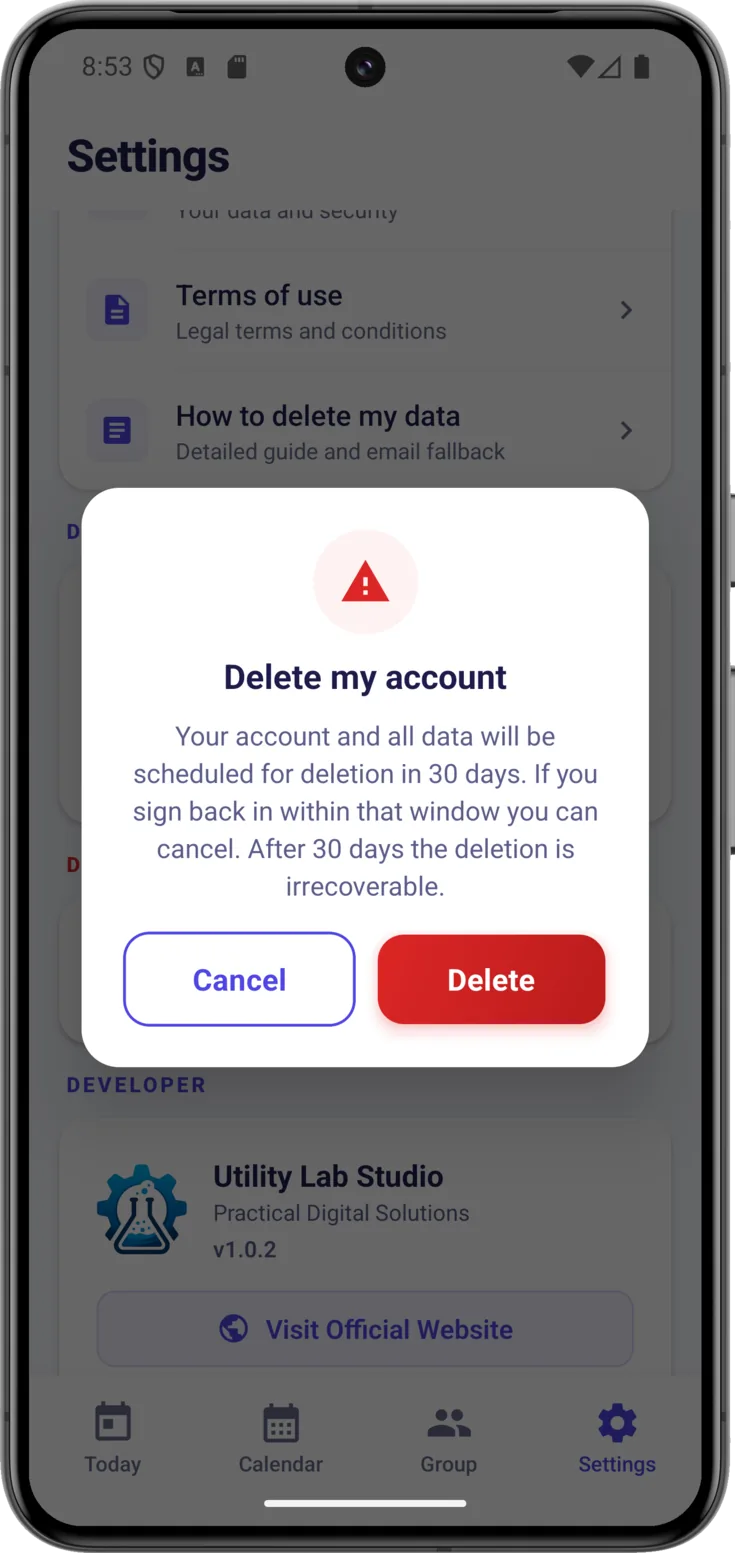
It is kept apart, in the danger zone, so that it does not get tapped by mistake. «Delete my account» asks you to confirm with your fingerprint or your PIN.
It is not instant: it leaves a 30-day window, and if you come back in having changed your mind you can tap «Cancel deletion». Once the 30 days have passed everything is erased and it cannot be recovered.
When you confirm, the app takes you back to the sign-in screen. That does not mean it is already done: your account still exists, it is simply marked.
How to change your mind
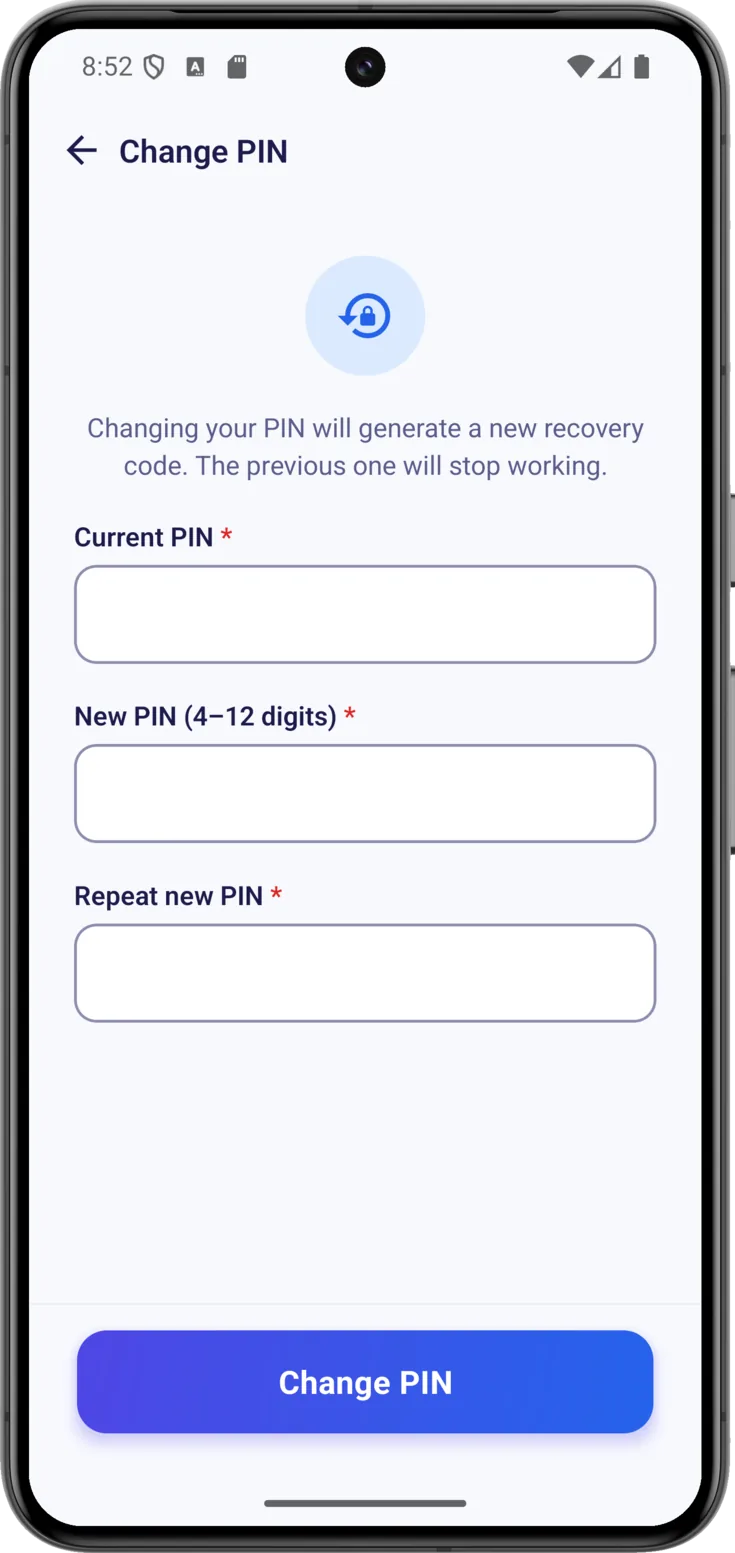
To cancel it, sign in again with the same email address. Before it lets you through, this window appears, telling you the exact day on which everything will be deleted and how many days are left. There you choose: «Cancel deletion», which puts the account back to normal, or «Continue with deletion», which lets you carry on using the app until the day arrives.
Behind the window you can see the group notice with its new closure date: when you ask for the account to be deleted, the groups you organize with other people in them are set to close on that very same day.
And there is something worth weighing up before you tap, because it does not only affect your own data: the groups you organize are deleted in full, with their medication, appointments, notes and expenses, and they disappear for the other caregivers too. From the groups where you are a guest, only your member record disappears, and with it your access; those groups carry on with the rest of the people. What you wrote down there stays: the medication and appointments you created, your notes, your expenses, the doses you ticked off and the activity log are still there for the people who go on caring, and they still carry your name. They describe the person being cared for, not you, and the people still at their side need them.
Nobody comes across it out of the blue, though. As soon as you ask for the deletion, the groups you organize with other people in them are left with a closure date that the rest of them see in the app, and they have those same 30 days to save whatever they need. If you cancel the deletion, the notice is withdrawn by itself.
The app gives the notice, but only you can explain why: the text the other people read talks about the group, not about who took the decision. So if you organize a group that the others need, talk to them. With time they can save a copy of what is theirs and set up a new group.
During those 30 days the group does not come to a halt. Medication can still be ticked off as given and the turns can still be organized, and the reminders keep arriving for everybody; what nobody can do is create or change content, invite anyone, or touch roles and permissions. When the day comes, the group is deleted in full. The groups you organize and care for on your own carry no notice, because there is nobody to warn.